Structured search
Use Atlan's structured search to find assets with precision using keywords, filters, and facets. Filter by source, certification, owner, tags, and save searches for sharing and quick access.
Prefer to ask a question instead of building a filter? Try conversational search for exploratory questions across your catalog. Structured search is best when you need precise filter control, saved views, or shareable URLs.
In the new UI, both conversational and keyword search are available from the search bar. The full filter set lives under Assets, then All Filters. See Atlan's new UI for what changed and how to switch back.
Find assets across your catalog using Atlan's structured search with keywords, filters, and facets. Search tables, columns, databases, SQL queries, BI dashboards, and more. Use structured search when you need precise filter control, want to save filtered views, or prefer browsing through results. You can also bookmark your search results and share them with other Atlan users.
For a high-quality search experience, Atlan recommends the following:
- Certify your assets
- Link terms to your assets to add business context
- Enrich your assets with descriptions
- Star your assets for easy access
You can bookmark your search results with applied filters or share them with other Atlan users in your organization for quick and easy access.
Search superpowers
Here is what makes Atlan's search intuitive and super quick.
Intelligent keyword recognition
Atlan supports powerful, intelligent search. When you search using keywords, the keywords in the matching search results are highlighted for easy recognition. Even if your keyword contains an underscore _ or a period . - for example, instacart_order - both keywords are highlighted across all search results.
For keyword-based search:
- If the keywords you're searching by is present in the asset name, description, or linked term, only then does the asset appear in your search results.
- Atlan displays search results based on asset names - technical name and alias - that match your keywords.
- If the keyword is a glossary term linked to assets or present in asset descriptions, such assets are boosted in search results.
- Whether your search query is incomplete (
insta) or misspelled (instacrt ordr), Atlan's powerful search can still help you discover exactly what you need.
Search from anywhere
There are multiple ways to start your search:
- Click the Search assets across Atlan bar on the homepage.
- Click Assets in the left-side panel.
- Use Cmd/Ctrl + K to open the search page from anywhere in Atlan.
Search using context
The Assets section offers a variety of filters to narrow down your search. Here are the different types of filters that you can use:
- Source: Search by connectors, chosen from a list of connections within Atlan.
- Domains: Filter assets by domains, such as a single domain, multiple domains, or no domain.
- Certificate: Search based on the certificate attached to data assets, such as Verified, Draft, Deprecated, and No certificate.
- Owners: Filter by selecting one or more users. You can also toggle between users and groups to filter based on a group of users.
- Tags: Filter by user-generated tags, such as
public,PII, and more. - Terms: Filter by terms from your glossaries, such as
cost,revenue, orP&L. - Properties: Filter assets by other properties, like technical name or alias, description, and last updated.
Atlan's search results include a quick count of all the resulting data assets grouped by type. As you apply the filters, you'll see these counts change in real time.
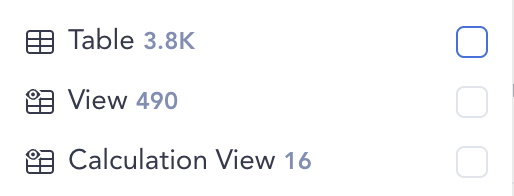
You can also enter a keyword in the search bar and filter your results by a specific type of data asset. For instance, enter the keyword order in the search bar and then click the Column checkbox to view column results for your searched keyword.
Sort search results
You can sort your search results in different ways. This helps you quickly find the assets you're interested in. Sorting options include:
- Relevance: Sort by how closely the search results match your searched keywords.
- Name: Sort by the asset name in an alphabetical or a reverse alphabetical order.
- Updated on Atlan: Sort by the newest or oldest updated assets.
- Star count: Sort assets by most or fewest stars.
- Order: Sort the search results in an ascending or descending order.
- Popularity: Sort Snowflake and Google BigQuery assets by the most or least popular assets.
The sorting options may vary depending on the asset type selected. For example, if you are viewing the results while filtering by the Table tab, you'll also have the option of sorting by the most or fewest number of rows and columns.
Search with patterns
You can refine your search in Atlan with the following patterns:
- Exact match search: Wrap the keywords within single
''or double""quotation marks when typing them in the search bar - for example,"instacart_total_users". Only the asset names with case-insensitive exact match and following the order of the keywords are boosted in the search results - for example,instacart_total_usersorInstacart_Total_Users. If the keywords are contained in the asset description or linked terms, such assets show up next. Additionally, you can use exact match to search by thequalifiedNameor globally unique identifier (GUID) of an asset. - Combined string of database, schema, and table: For a more data-friendly search experience, copy the combined string of
database.schema.table(orschema.table) from your SQL editor and paste it in the search bar - for example,atlan_db.public.instacart_total_orders. - Multiple phrase match: When you enter two or more keywords, Atlan finds assets with asset names that partially match the keywords or a combination of them to narrow down the search results.
See only what you want to see
Atlan gives you the option to customize your search. Want to show or hide certain fields in your search results? Click the 3-dot icon next to the search bar to set display preferences for each field: