Manage data connections and workflows from a central hub — monitor extraction, schedule runs, and control connector settings.
Workflow center Public Preview
Manage data connections and workflows from a central hub—monitor extraction, schedule runs, and control connector settings in Atlan. The Workflow center organizes all workflow management tasks in one place for streamlined administration.
Interface overview
The Workflow center organizes workflow management through these components:
Navigation and access
- Primary access: Workflows option in the left navigation menu
- Management interface: Manage tab for workflow administration
Search and filtering capabilities
Search and filter workflows with these options:
- Search bar: Locate workflows by name or partial matches
- Package filter: Filter by specific connector types and data sources
- Created by: View workflows created by particular users or teams
- Workflow type: Filter by workflow categories (connectors, utilities, miners) with count displays
- Schedule status: Differentiate between scheduled and unscheduled workflow configurations
Workflow sidebar features
Select any workflow to view detailed information in the sidebar:
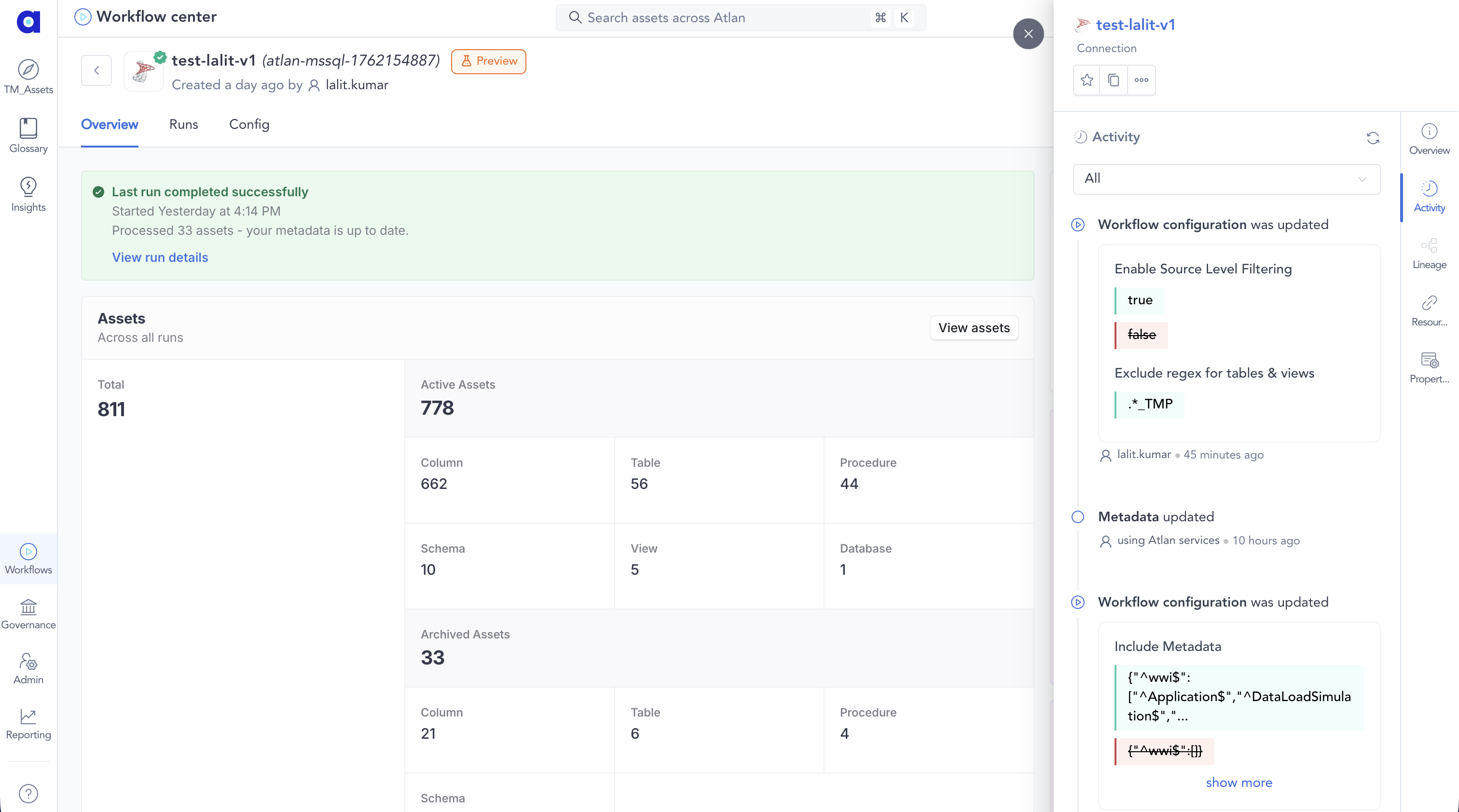
Overview tab
The Overview tab shows workflow performance and configuration details with key metrics and execution status.
- Run statistics: Total execution counts and performance metrics
- Creation metadata: When the workflow was created and by whom
- Schedule configuration: Automated execution schedules (when applicable)
- Recent execution history: Last five workflow runs with status indicators
- Direct execution: Run workflow button for manual execution
Runs tab
The Runs tab shows execution history and performance analytics for tracking past workflow runs.
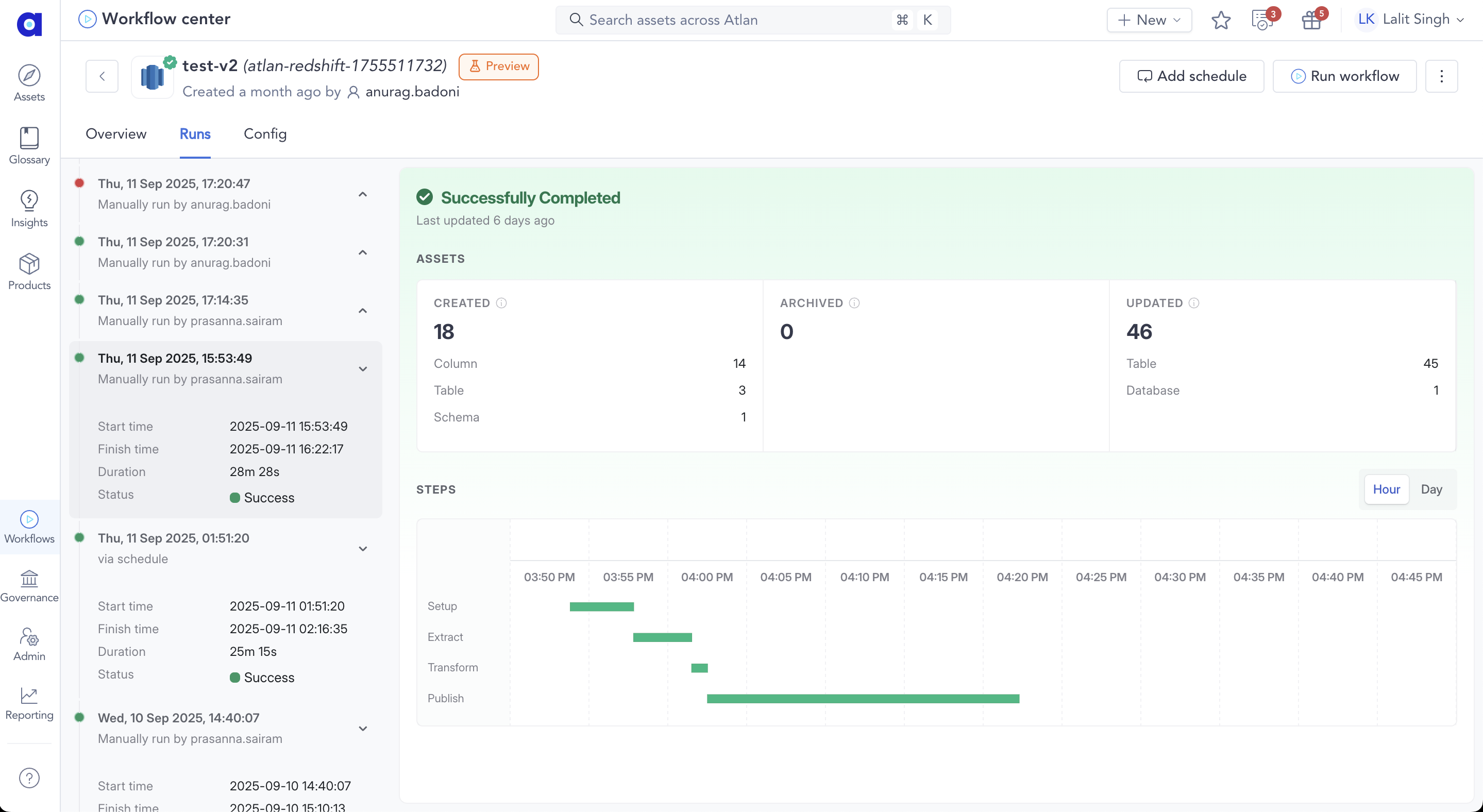
Select any run from the past runs list to view execution details in the timeline:
- Process graph showing Setup → Extract → Transform → Publish stages
- Hour and Day view toggles for execution patterns
- Color-coded status (green for success, red for failure)
- Hover details with timing, duration, and asset counts
- Start and finish timestamps in the sidebar
- Total elapsed duration and current status
- Trigger information (manual or scheduled)
Failed workflow runs highlight the exact failure point for quick troubleshooting:

The timeline shows red indicators at the failed stage. The logs section at the bottom displays:
- Error logs with searchable content
- Log level filters (All levels, ERROR, INFO)
- Summarize button for AI-generated log analysis
Config tab
The Config tab lets you adjust workflow parameters and configuration settings based on execution insights and requirements.
Activity panel
The Activity panel on the right displays audit logs for all workflow configuration changes. Track who modified settings, what changed, and when modifications occurred. See View workflow audit logs for step-by-step instructions.
Workflow health
Workflow health proactively surfaces workflows whose runs keep failing, so you can resolve them before they leave your catalog metadata stale. Atlan tracks consecutive failures for each workflow and escalates it through health states, and can automatically pause a workflow that keeps failing. Admins and workflow admins can review, pause, or resume flagged workflows from the Workflow center. For why workflow health exists and which failures count toward these states, see Keeping workflows healthy.
Health states
Atlan evaluates each workflow's recent runs once per day and tracks both how many consecutive runs have failed and how long the workflow has been failing. Each state has a run threshold and a day threshold, and whichever is met first applies:
- At risk: The workflow has failed 5 consecutive runs, or has been failing for 30 days. Atlan moves it to Needs attention but keeps it running on its existing schedule, so you have time to fix the issue.
- Auto-paused: The workflow stays at risk and reaches 15 consecutive failed runs, or 60 days of failing. Atlan then automatically pauses its schedule to stop repeated failed runs and prevent further stale metadata. This is reversible.
On a daily schedule, that works out to roughly 5 days before a workflow needs attention, and roughly 15 days from its first failure before Atlan pauses it. A workflow that runs less often reaches the day threshold first.
Only failures that require your action are counted toward these states, and only the workflow's schedule is paused, not the workflow itself.
Where workflow health appears
Monitor view
The Monitor tab in the Workflow center is the primary place to track workflow health. Two sections appear before the run history.
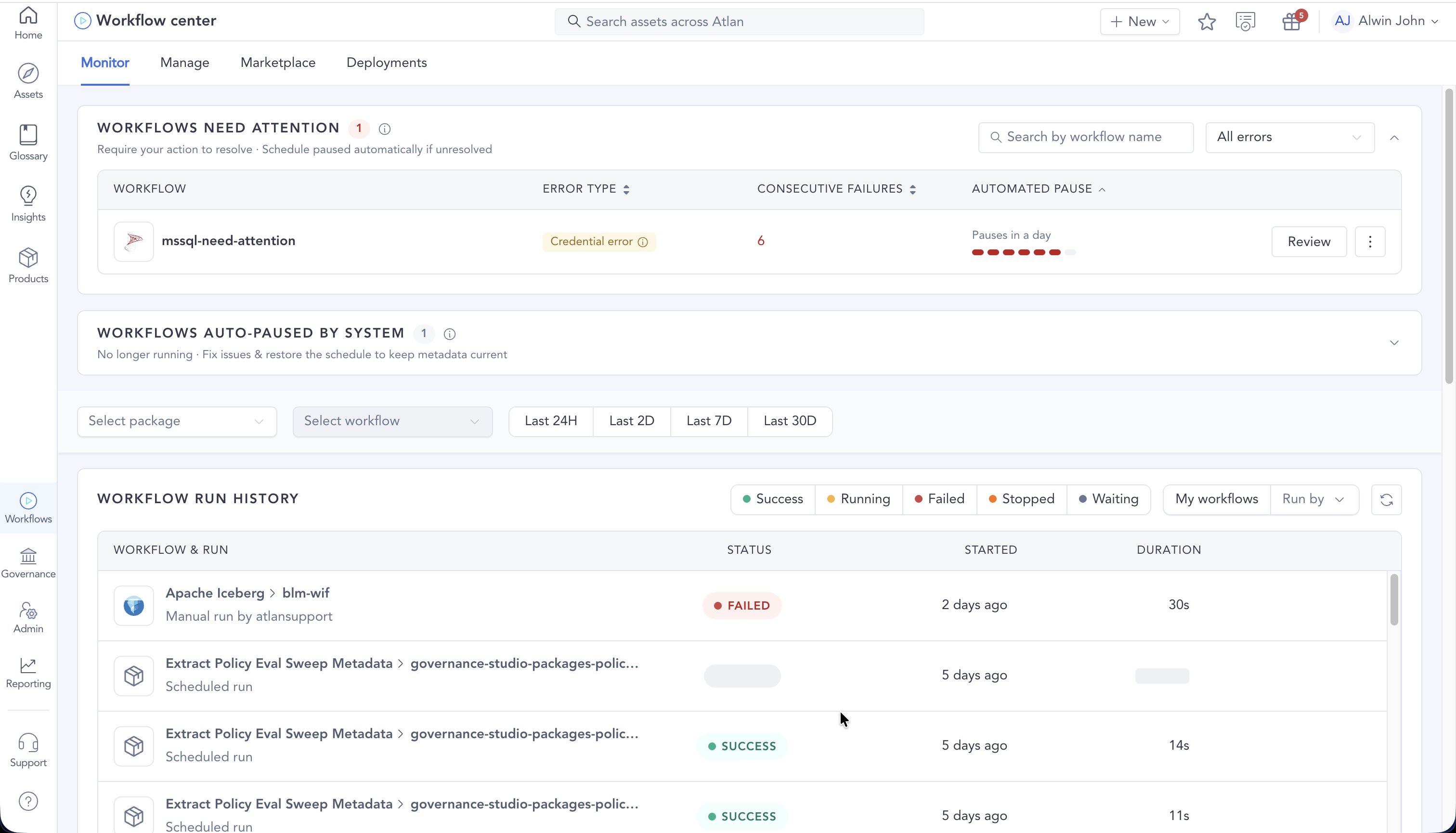
Workflows need attention lists at-risk workflows with the error type, the number of consecutive failures, and a progress indicator counting down to automated pause:
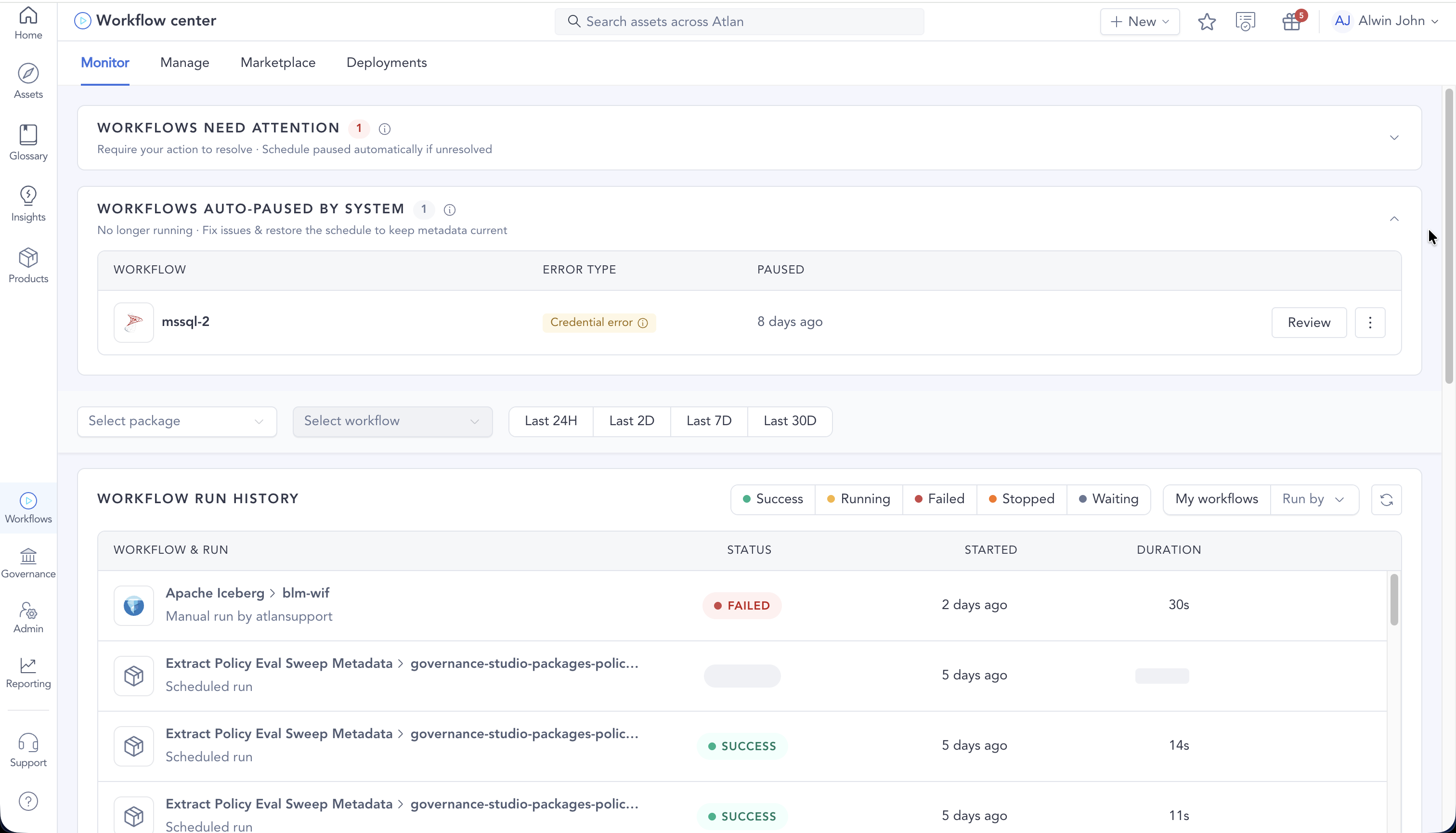
Workflows auto-paused by system lists the workflows Atlan has paused, with the error type and when each was paused:
Admin center
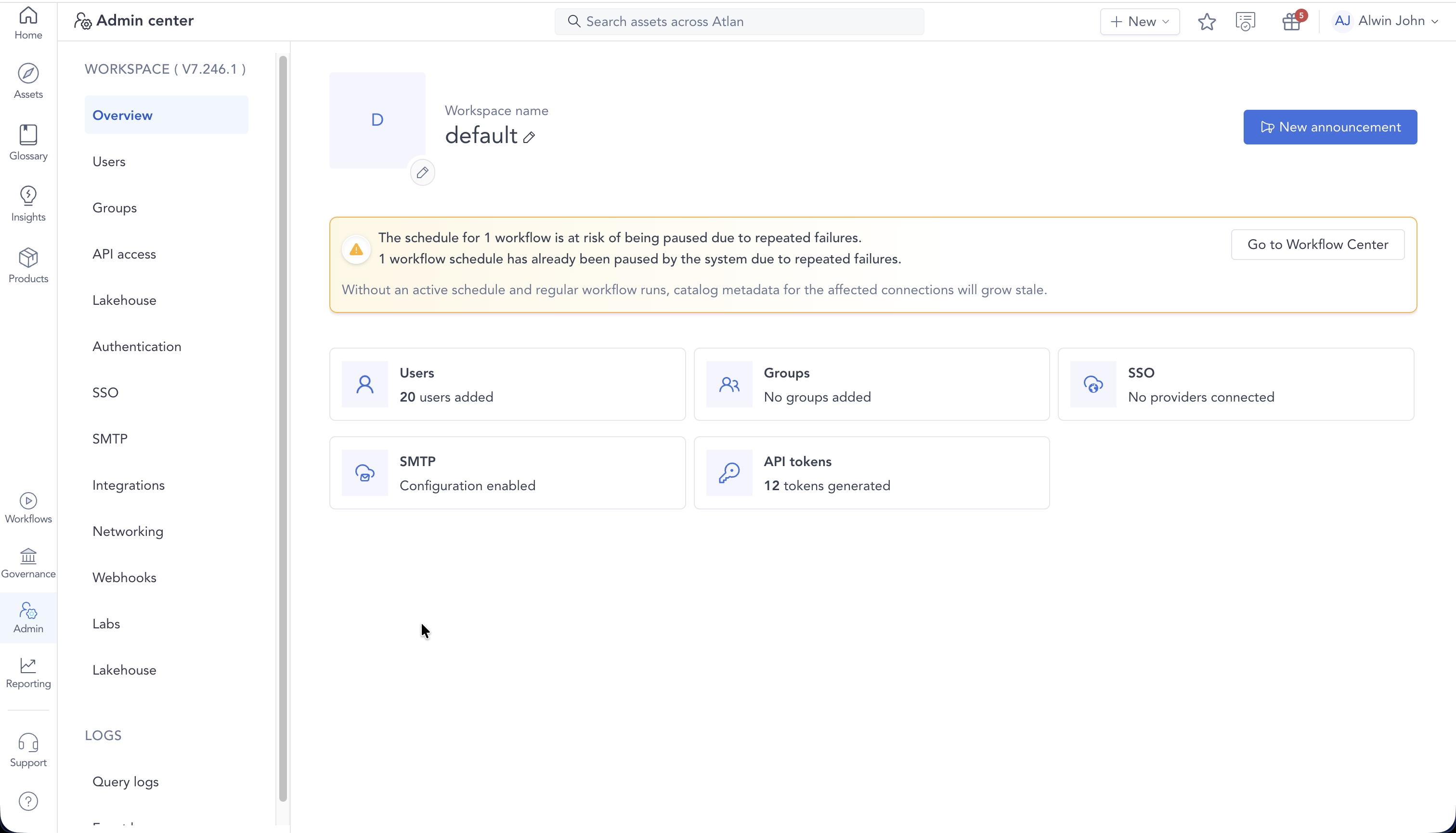
Admins see a summary banner on the Admin center overview when any workflow is at risk or has already been auto-paused, with a shortcut to the Workflow center:
Connection assets
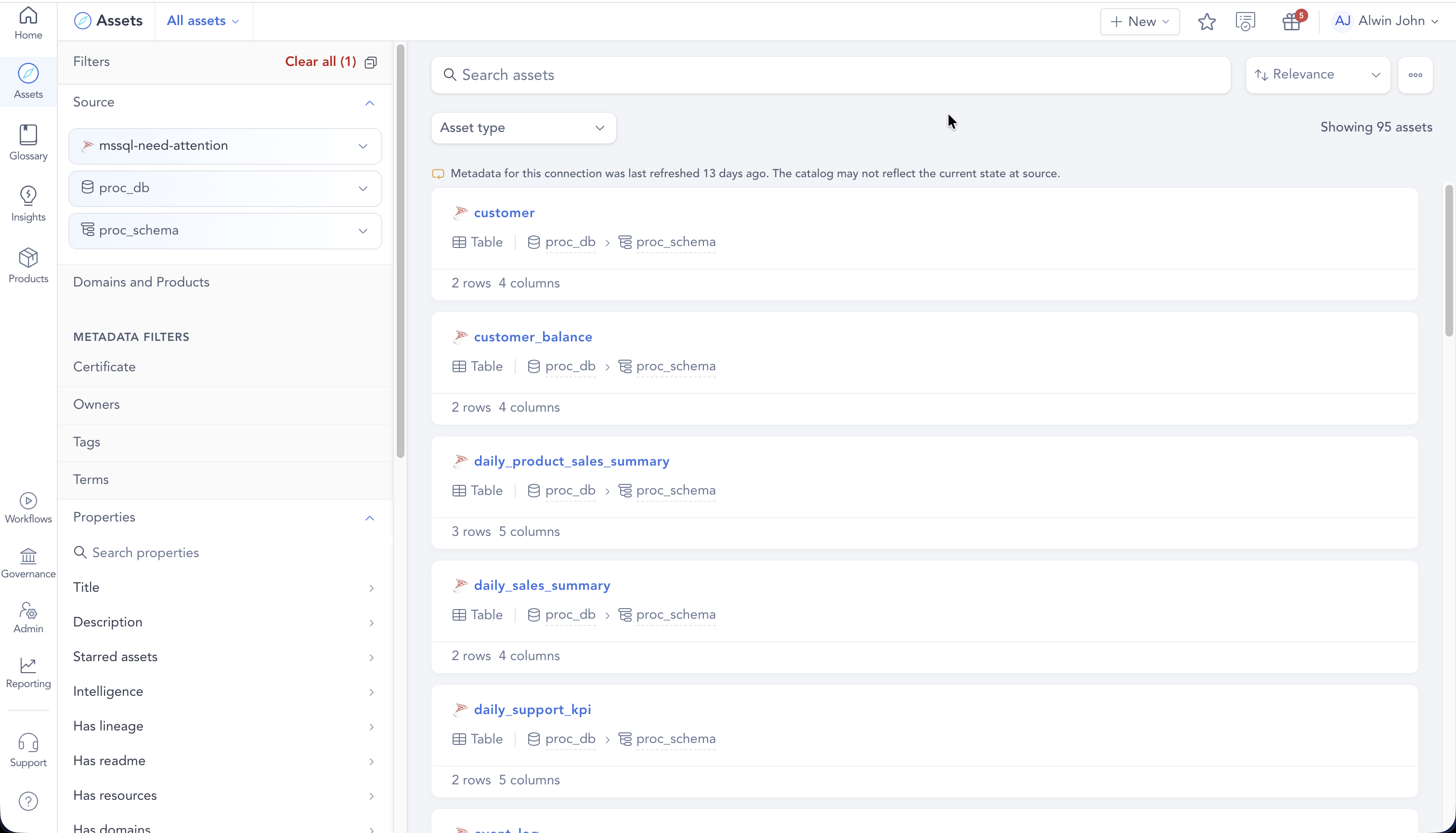
When you browse assets from a connection whose metadata hasn't refreshed recently, a note shows how long ago the connection last refreshed, so you know the catalog may not reflect the current state at source:
Reviewing and resolving
Each flagged workflow surfaces the details you need to act:
- The number of consecutive failures and how long until automated pause
- The error type from the failed run
- A suggested action to resolve the failure
Admins and workflow admins can take the following actions from the Monitor view or the workflow profile:
- Review: Open the workflow to inspect its runs and logs.
- Pause workflow: Manually pause the schedule of an at-risk workflow, available from the More actions menu. Pausing stops the schedule from running until you resume it; the workflow itself stays in place.
- Resume: Restore the schedule of an auto-paused or manually paused workflow.
To recover an auto-paused workflow, fix the underlying error and run the workflow manually—a successful run restores the schedule. A workflow clears from workflow health once it runs successfully again or you resume it. Paused entries that aren't resolved are automatically cleared after 30 days.
Key operations
The Workflow center supports these operations for managing data integration processes:
Sidebar workflow execution
Execute workflows directly from the sidebar:
- One-click execution: Select workflow and click Run workflow in the Overview tab
- Confirmation workflow: Execution confirmation prompt before starting
- Automatic redirection: Redirects to monitoring interface after successful execution
Advanced workflow management
For comprehensive configuration and detailed administration:
- Detailed view access: Double-click workflows or use Open for full configuration
- Complete configuration: All workflow settings, parameters, and execution history
- Run management: Historical executions and performance analytics
See also
- Workflow: Individual workflow monitoring and metadata tracking
- Keeping workflows healthy: Why Atlan flags and pauses repeatedly failing workflows, how to restore a paused schedule, and what admins are expected to do