TL;DR
Enable and configure data quality for your BigQuery connection in Atlan.
Your AI can read this via Docs MCPcurl -fsSL "https://docs.atlan.com/install-docs-mcp" | bashConnect
Enable data quality for BigQuery
Enable data quality on your BigQuery connection in Atlan to start monitoring data quality. This guide helps you configure the connection with the necessary credentials and permissions.
Prerequisites
Before you enable Data Quality for BigQuery, confirm that you have:
- Set up BigQuery for data quality completed (including access request)
- Requested and received access for data quality from the Atlan team
- The service account JSON key file created during BigQuery setup
- Identify the BigQuery connection where you want to enable data quality
Enable data quality
Once the Atlan team grants the access, follow these steps to enable data quality on your BigQuery connection.
caution
Double-check DQS Project ID and DQS Dataset before clicking Update. Once setup completes successfully, these fields are locked and can't be edited. To correct a wrong value, contact Atlan support.
-
Turn on the data quality configuration toggle to configure:
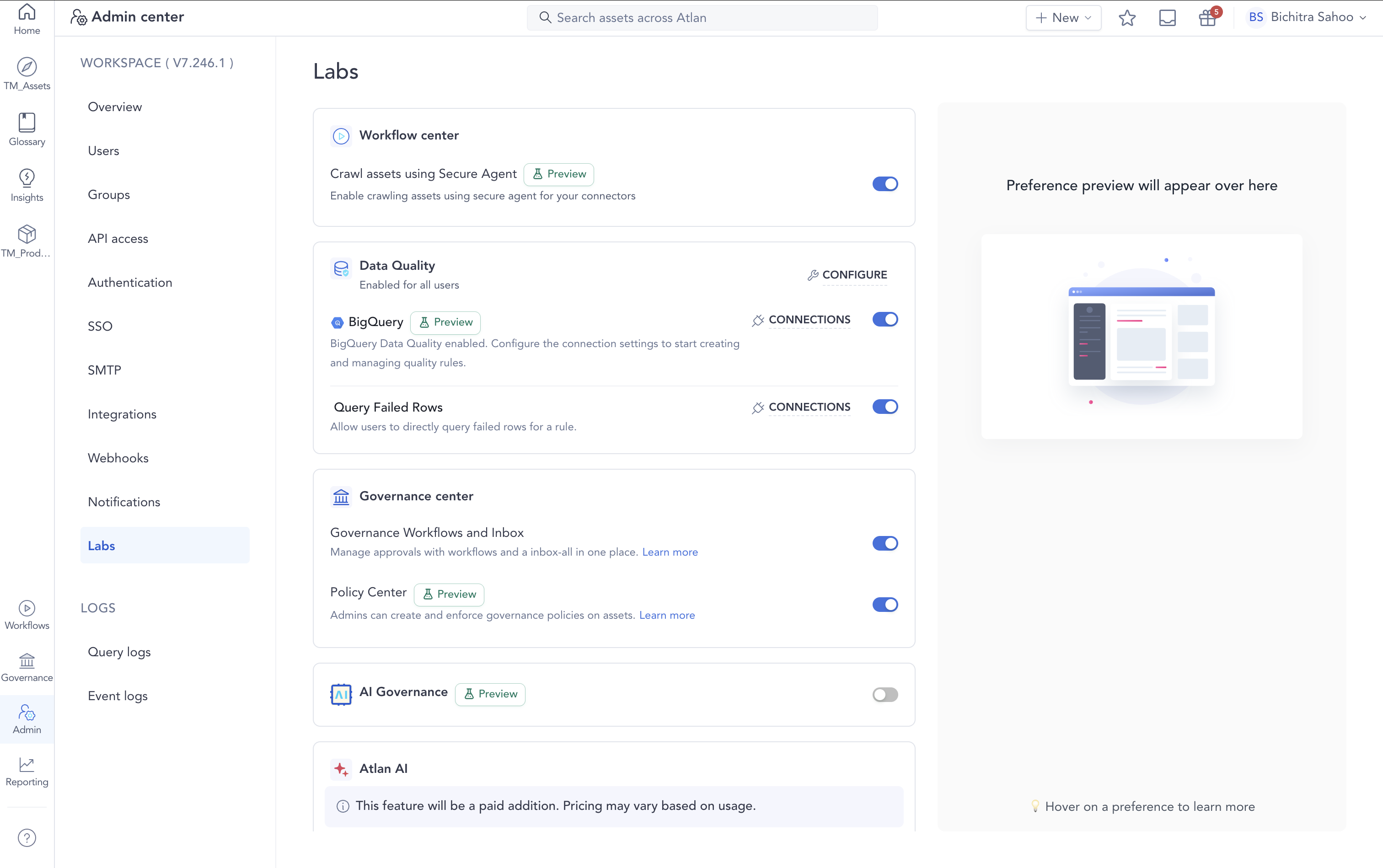
- Navigate to Admin in Atlan
- Find the Labs section
- Turn on the BigQuery toggle under Data Quality section
-
Select your connection and configure credentials:
- Labs Page
- Connection Settings
- Navigate to Admin > Labs > Data Quality
- Click Connections for BigQuery and select your connection from the list
- Click Configure for your selected connection
- Turn on BigQuery data quality toggle
- Enter the following credential details:
- Service Account JSON: Paste the contents of the service account JSON key file
- Enter your DQS Project ID: The GCP project ID where Atlan stores DQ metadata
- Enter your DQS Dataset: The dataset name (for example,
atlan_dq) where Atlan stores DQ metadata for this connection - Click Run permissions check to verify:
- Credentials have necessary permissions in BigQuery
- BigQuery setup completed correctly
- Click Update to save the credentials
- Navigate to Governance > Connections
- Select your BigQuery connection
- Open Connection settings from the sidebar
- Enter the following credential details:
- Service Account JSON: Paste the contents of the service account JSON key file
- Enter your DQS Project ID: The GCP project ID where Atlan stores DQ metadata
- Enter your DQS Dataset: The dataset name (for example,
atlan_dq) where Atlan stores DQ metadata for this connection - Click Run permissions check to verify:
- Credentials have necessary permissions in BigQuery
- BigQuery setup completed correctly
- Click Update to save the credentials
See also
- Rule types and failed rows validations - Reference guide for all available rule types
- Configure alerts for data quality rules - Set up real-time notifications for rule failures