Configure BigQuery to enable data quality monitoring through Atlan.
Set up BigQuery
This guide walks through configuring BigQuery to work with Atlan's Data Quality Studio by setting up the GCP project, creating the required service account and dataset, and granting the necessary privileges.
Before you begin
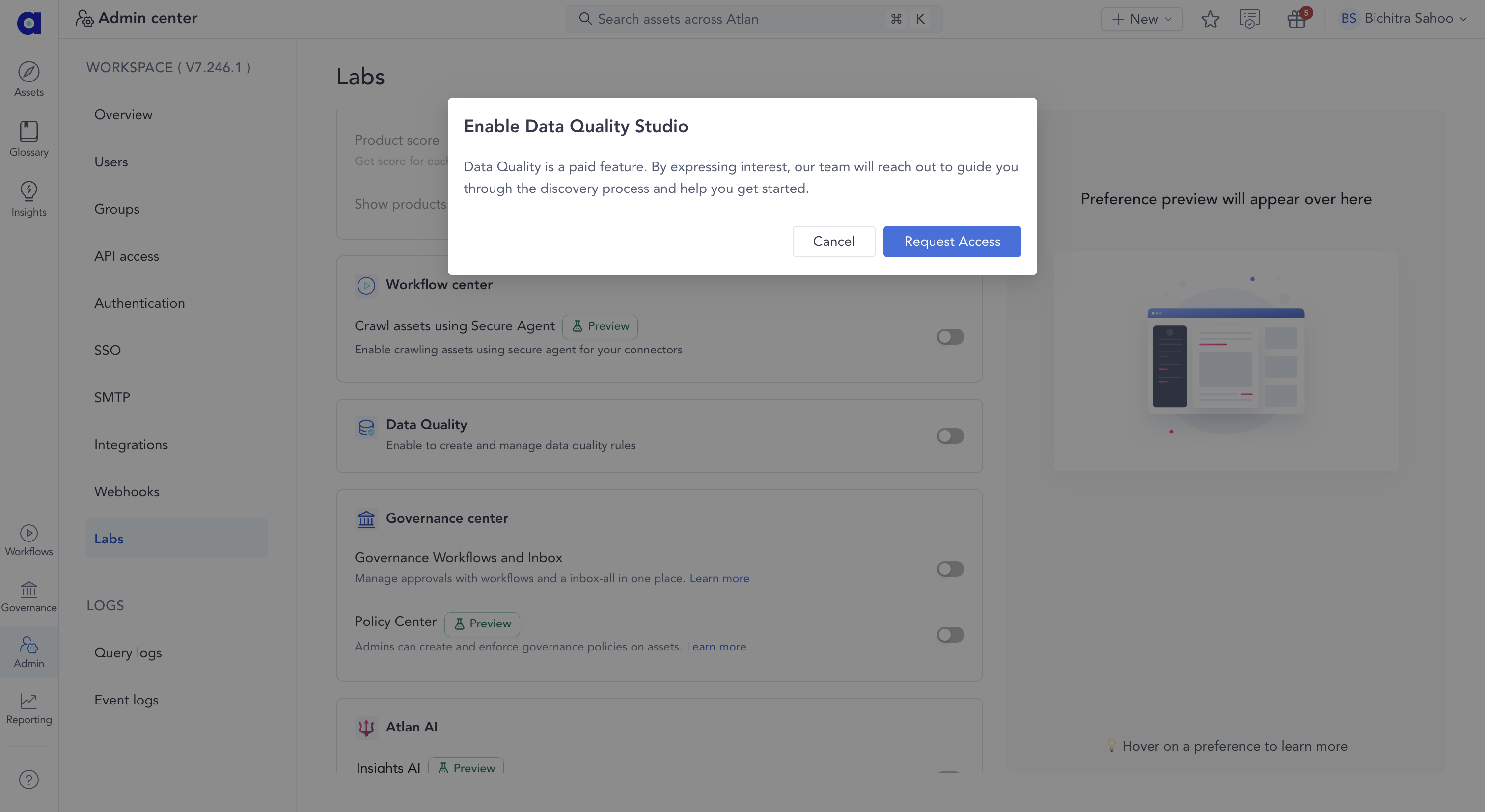
Data Quality is a paid feature that requires access. You can request access by following the steps below so the team can enable it for you, while you continue setting up BigQuery.
-
In your Atlan workspace, click Settings from the left menu.
If you are using the Old UI (Classic), navigate to Admin > Labs in Atlan.
-
Turn on the Data Quality toggle
-
Click Request Access when the popup appears
After you request access, the Atlan team reviews and grants access. Continue with the setup steps below, and once access is granted, you can enable Data Quality for BigQuery.
Prerequisites
Before you begin, you need:
- A Google Cloud Platform (GCP) account with billing enabled
- Owner or BigQuery Admin role in your GCP organization or project
- Permissions to create service accounts (
roles/iam.serviceAccountAdmin)
Set up GCP project
Choose a project organization strategy that best fits your organization's needs. Atlan supports two approaches for organizing your DQS resources in BigQuery.
- Dedicated project (recommended)
- Existing project
Create a new GCP project specifically for DQS operations. This approach organizes all DQS-related resources in a single project, including the service account, scheduled queries, datasets, and tables containing data quality data.
- Google Cloud Console
- gcloud CLI
-
Go to the Google Cloud Console
-
Create a new project for DQS:
- Click the project dropdown in the top navigation bar
- Click New Project
- Enter a project name (for example,
atlan-dqs-project) - Select your organization and billing account
- Click Create
-
Enable the BigQuery API for this project:
Navigate to APIs & Services > Library > search for BigQuery API > click Enable
-
Enable the BigQuery Data Transfer API for scheduled queries:
Navigate to APIs & Services > Library > search for BigQuery Data Transfer API > click Enable
-
Link a billing account to the project:
Navigate to Billing > Link a billing account and select your billing account.
-
Create a new project for DQS:
# Create a new project for DQSgcloud projects create atlan-dqs-project \--name="Atlan DQS Project" \--organization=<your-org-id># Set the new project as activegcloud config set project atlan-dqs-project -
Enable the BigQuery API for this project:
# Enable BigQuery APIgcloud services enable bigquery.googleapis.com --project=atlan-dqs-project -
Enable the BigQuery Data Transfer API for scheduled queries:
# Enable BigQuery Data Transfer APIgcloud services enable bigquerydatatransfer.googleapis.com --project=atlan-dqs-project -
Link a billing account to the project:
# Link billing accountgcloud billing projects link atlan-dqs-project \--billing-account=<your-billing-account-id>
After completing these steps, proceed to Create service account within this new project.
Use an existing GCP project and create a dedicated dataset for DQS operations. This approach keeps DQ operations within your existing project structure while maintaining isolation through dataset-level access control.
-
Identify the existing GCP project you want to use for DQS:
# List available projectsgcloud projects list# Set your chosen project as activegcloud config set project <your-existing-project-id>
- Google Cloud Console
- gcloud CLI
-
Verify the BigQuery API is enabled:
Navigate to APIs & Services > Enabled APIs & services and confirm BigQuery API is listed.
-
Enable the BigQuery Data Transfer API for scheduled queries:
Navigate to APIs & Services > Library > search for BigQuery Data Transfer API > click Enable
-
Verify the BigQuery API is enabled:
# Check if BigQuery API is enabledgcloud services list --enabled --filter="name:bigquery.googleapis.com"# Enable if not already enabledgcloud services enable bigquery.googleapis.com --project=<your-existing-project-id> -
Enable the BigQuery Data Transfer API for scheduled queries:
# Enable BigQuery Data Transfer APIgcloud services enable bigquerydatatransfer.googleapis.com --project=<your-existing-project-id>
-
Verify you have permissions to create datasets and service accounts in this project:
# Check your current IAM permissionsgcloud projects get-iam-policy <your-existing-project-id> \--flatten="bindings[].members" \--filter="bindings.members:user:<your-email>"You need
roles/bigquery.adminorroles/bigquery.dataOwnerandroles/iam.serviceAccountAdminpermissions.
After completing these steps, proceed to Create service account within this project.
Create service account
Create a dedicated service account within your chosen GCP project for Atlan to perform data quality operations. You can create a new service account specifically for DQ operations, or reuse an existing service account if it has the required permissions. Atlan recommends using a dedicated service account named atlan-dq-service-account for better access control and auditing.
- Go to the Google Cloud Console and select your DQS project
- Navigate to IAM & Admin > Service Accounts
- Click Create Service Account
- Configure the service account:
- Service account name:
atlan-dq-service-account - Service account ID: Automatically generated from the name
- Description: Service account for Atlan Data Quality Studio operations
- Service account name:
- Click Create and Continue
- Skip the optional "Grant this service account access to project" step by clicking Continue (permissions are configured later in this guide)
- Skip the optional "Grant users access to this service account" step by clicking Done
Create service account using gcloud CLI
# Set your project ID
PROJECT_ID="<your-project-id>"

# Create the service account
gcloud iam service-accounts create atlan-dq-service-account \
  --project=$PROJECT_ID \
  --display-name="Atlan DQ Service Account" \
  --description="Service account for Atlan Data Quality Studio operations"
Create and download service account key
Generate a JSON key for the service account that Atlan uses for authentication.
- In the Service Accounts list, find your newly created service account
- Click on the service account name to open its details
- Navigate to the Keys tab
- Click Add Key > Create new key
- Select JSON as the key type
- Click Create to download the key file
- Store the JSON key file securely in a secure location. This file contains credentials that grant access to your BigQuery resources. Never commit it to version control.
Create service account key using gcloud CLI
# Set variables
PROJECT_ID="<your-project-id>"
SERVICE_ACCOUNT="atlan-dq-service-account@${PROJECT_ID}.iam.gserviceaccount.com"

# Create and download the key
gcloud iam service-accounts keys create atlan-dq-key.json \
  --iam-account=$SERVICE_ACCOUNT
Grant privileges
Grant the service account the necessary privileges to perform data quality operations. Atlan requires the following permissions to run data quality operations in BigQuery:
bigquery.jobs.create- Enables Atlan to run jobs (including queries) within the projectbigquery.transfers.update- Enables Atlan to create and manage scheduled queriesbigquery.transfers.get- Enables Atlan to view scheduled query configurations
Create custom role
Create a custom role in the Google Cloud console for Atlan DQS integration.
- Open the Google Cloud console
- From the left menu under IAM and admin, click Roles
- Using the dropdown list at the top of the page, select the project in which you want to create a role
- From the upper left of the Roles page, click Create Role
- In the Create role page, enter the following details:
- Title:
Atlan DQ Role - Description: Atlan Data Quality Studio role for scheduled queries and job execution
- ID: Automatically generated from the title
- Title:
- Click Add permissions and add the following permissions:
bigquery.jobs.createbigquery.transfers.updatebigquery.transfers.get
- Click Create to finish custom role setup
Assign custom role to service account
- Go to IAM & Admin > IAM
- Click Grant Access
- Enter the service account email (for example,
atlan-dq-service-account@<project-id>.iam.gserviceaccount.com) - Click Select a role and select the custom role you created (for example,
Atlan DQ Role) - Click Save
Create custom role and assign using gcloud CLI
# Set variables
PROJECT_ID="<your-project-id>"
SERVICE_ACCOUNT="atlan-dq-service-account@${PROJECT_ID}.iam.gserviceaccount.com"

# Create a custom role for Atlan DQ operations
gcloud iam roles create atlanDQRole \
  --project=$PROJECT_ID \
  --title="Atlan DQ Role" \
  --description="Atlan Data Quality Studio role for scheduled queries and job execution" \
  --permissions="bigquery.jobs.create,bigquery.transfers.update,bigquery.transfers.get"

# Assign the custom role to the service account
gcloud projects add-iam-policy-binding $PROJECT_ID \
  --member="serviceAccount:${SERVICE_ACCOUNT}" \
  --role="projects/${PROJECT_ID}/roles/atlanDQRole"
Create DQS dataset
Create a dedicated dataset for storing data quality rule metadata, execution results, and internal processing tables. BigQuery DQS currently supports a single region only. Create the DQS dataset in the same location where the tables you want to monitor exist. All tables governed by DQS must be in the same region as the DQS dataset.
- BigQuery Console
- SQL
- gcloud CLI
- Go to the BigQuery Console
- In the Explorer panel, click the three dots next to your project name
- Click Create dataset
- Configure the dataset:
- Dataset ID:
atlan_dq - Location type: Select the region matching your monitored tables (must be the same region as your monitored tables)
- Description: Dataset for Atlan Data Quality Studio metadata and results
- Dataset ID:
- Click Create dataset
-- Create a dataset for Atlan DQ metadata
-- Replace <location> with your data region (for example, 'US', 'EU', 'us-central1')
CREATE SCHEMA IF NOT EXISTS `<your-project-id>.atlan_dq`
OPTIONS (
  description = 'Dataset for Atlan Data Quality Studio metadata and results',
  location = '<location>'
);
# Create the dataset
# Replace <location> with your data region (for example, 'US', 'EU', 'us-central1')
bq mk --dataset \
  --location=<location> \
  --description="Dataset for Atlan Data Quality Studio metadata and results" \
  <your-project-id>:atlan_dq
If you want to enable data quality for multiple Atlan connections within the same GCP project, create a separate, uniquely named dataset for each connection. A dedicated dataset is required for each Atlan connection. You can replace atlan_dq with a unique name for each connection.
Grant DQS dataset permissions
Grant the service account full ownership of the DQS dataset to create and manage DQ metadata tables, stored procedures, and execution results:
-- Grant full access to the DQS dataset
GRANT `roles/bigquery.dataOwner`
ON SCHEMA `<your-project-id>.atlan_dq`
TO 'serviceAccount:atlan-dq-service-account@<your-project-id>.iam.gserviceaccount.com';
Grant read access to monitored data
Grant the service account read access to the datasets or tables you want to monitor with data quality rules. This is separate from the DQS dataset and refers to your actual data assets.
At the dataset level (recommended for monitoring all tables in a dataset):
-- Grant read access to a dataset containing tables you want to monitor
GRANT `roles/bigquery.dataViewer`
ON SCHEMA `<your-project-id>.<dataset-name>`
TO 'serviceAccount:atlan-dq-service-account@<your-project-id>.iam.gserviceaccount.com';
At the table level (for granular access to specific tables):
-- Grant read access to a specific table you want to monitor
GRANT `roles/bigquery.dataViewer`
ON TABLE `<your-project-id>.<dataset-name>.<table-name>`
TO 'serviceAccount:atlan-dq-service-account@<your-project-id>.iam.gserviceaccount.com';
Grant metadata access
Required for freshness rules without a column.
At the dataset level (recommended):
-- Grant metadata viewer access on a monitored dataset
GRANT `roles/bigquery.metadataViewer`
ON SCHEMA `<your-project-id>.<dataset-name>`
TO 'serviceAccount:atlan-dq-service-account@<your-project-id>.iam.gserviceaccount.com';
At the project level:
gcloud projects add-iam-policy-binding <your-project-id> \
  --member="serviceAccount:atlan-dq-service-account@<your-project-id>.iam.gserviceaccount.com" \
  --role="roles/bigquery.metadataViewer"
Verify setup
Verify that the setup is complete by testing the service account permissions.
- BigQuery with impersonation
- Service account key
Use the bq command-line tool to run queries as the service account:
# Set variables
PROJECT_ID="<your-project-id>"
SERVICE_ACCOUNT="atlan-dq-service-account@${PROJECT_ID}.iam.gserviceaccount.com"

# Test write access to the DQS dataset
bq query --use_legacy_sql=false \
  --service_account_credential=$SERVICE_ACCOUNT \
  "CREATE OR REPLACE TABLE \`${PROJECT_ID}.atlan_dq.test_permissions\` AS SELECT 1 AS test_result"

# Clean up the test table
bq query --use_legacy_sql=false \
  --service_account_credential=$SERVICE_ACCOUNT \
  "DROP TABLE \`${PROJECT_ID}.atlan_dq.test_permissions\`"

# Test read access to a table you want to monitor
bq query --use_legacy_sql=false \
  --service_account_credential=$SERVICE_ACCOUNT \
  "SELECT COUNT(*) FROM \`${PROJECT_ID}.<dataset-name>.<table-name>\` LIMIT 1"
Authenticate using the downloaded service account key:
# Authenticate with the service account key
gcloud auth activate-service-account --key-file=atlan-dq-key.json

# Test write access to the DQS dataset
bq query --use_legacy_sql=false \
  "CREATE OR REPLACE TABLE \`<your-project-id>.atlan_dq.test_permissions\` AS SELECT 1 AS test_result"

# Clean up the test table
bq query --use_legacy_sql=false \
  "DROP TABLE \`<your-project-id>.atlan_dq.test_permissions\`"

# Test read access to a table you want to monitor
bq query --use_legacy_sql=false \
  "SELECT COUNT(*) FROM \`<your-project-id>.<dataset-name>.<table-name>\` LIMIT 1"

# Switch back to your user account when done
gcloud auth login
If all commands succeed without permission errors, your setup is complete.
Next steps
- Enable data quality on connection - Configure your BigQuery connection for data quality monitoring