Manage deployments
Verify, install, update, redeploy, and remove Self-Deployed Runtime apps from the Deployments tab, and keep an eye on the ones that need attention.
The Deployments tab lists every Self-Deployed Runtime (SDR) app and SDR Orchestrator connected to your Atlan tenant. Use it to check that a new app is running, see each app's state and version, and update, redeploy, or remove apps.
To open it, go to Workflows > Deployments.
Select your deployment type once; tabs stay in sync across all sections.
Before you begin
- You need access to Workflows to view the tab.
- Removing an app or runtime requires the Admin role.
- Read Install-to-workflow flow to understand how installing an app relates to environment selection and workflow setup.
Verify new app or runtime
After you deploy an app or an SDR Orchestrator, it registers itself with your tenant and starts sending heartbeats.
- Go to Workflows > Deployments.
- Find the new entry:
- SDR Orchestrator: a row titled SDR Orchestrator, with your deployment name underneath. Its apps are listed under it once you install them.
- Single app: a row with the app's name, and
<app_name>-<deployment_name>underneath.
- Confirm it shows Healthy. Registration usually shows up within a few minutes.
If it shows Inactive, the app stopped sending heartbeats. Check that its container is running and can reach your Atlan tenant.
Understand app states
Every app is in one of three states, based on its last heartbeat. Atlan calculates the state each time you open the tab; you don't need to change it. Hover over a state to see what it means.
| State | Definition |
|---|---|
| Healthy | Atlan is receiving heartbeats; the last one arrived within 40 minutes. |
| Inactive | No heartbeat for over 40 minutes. Check that the app is running and can reach Atlan. |
| Archived | No heartbeat for over 30 days. Usually a runtime you no longer use. |
Last active shows when Atlan last received a heartbeat. When an inactive or archived app starts sending heartbeats again, it returns to Healthy automatically.
Find runtime or app
The runtime list groups apps under the SDR Orchestrator that manages them. Click an orchestrator row to collapse or expand its apps. Apps deployed without an orchestrator (Standalone) appear on their own. Apps managed by an orchestrator show a small orchestrator badge on their icon.
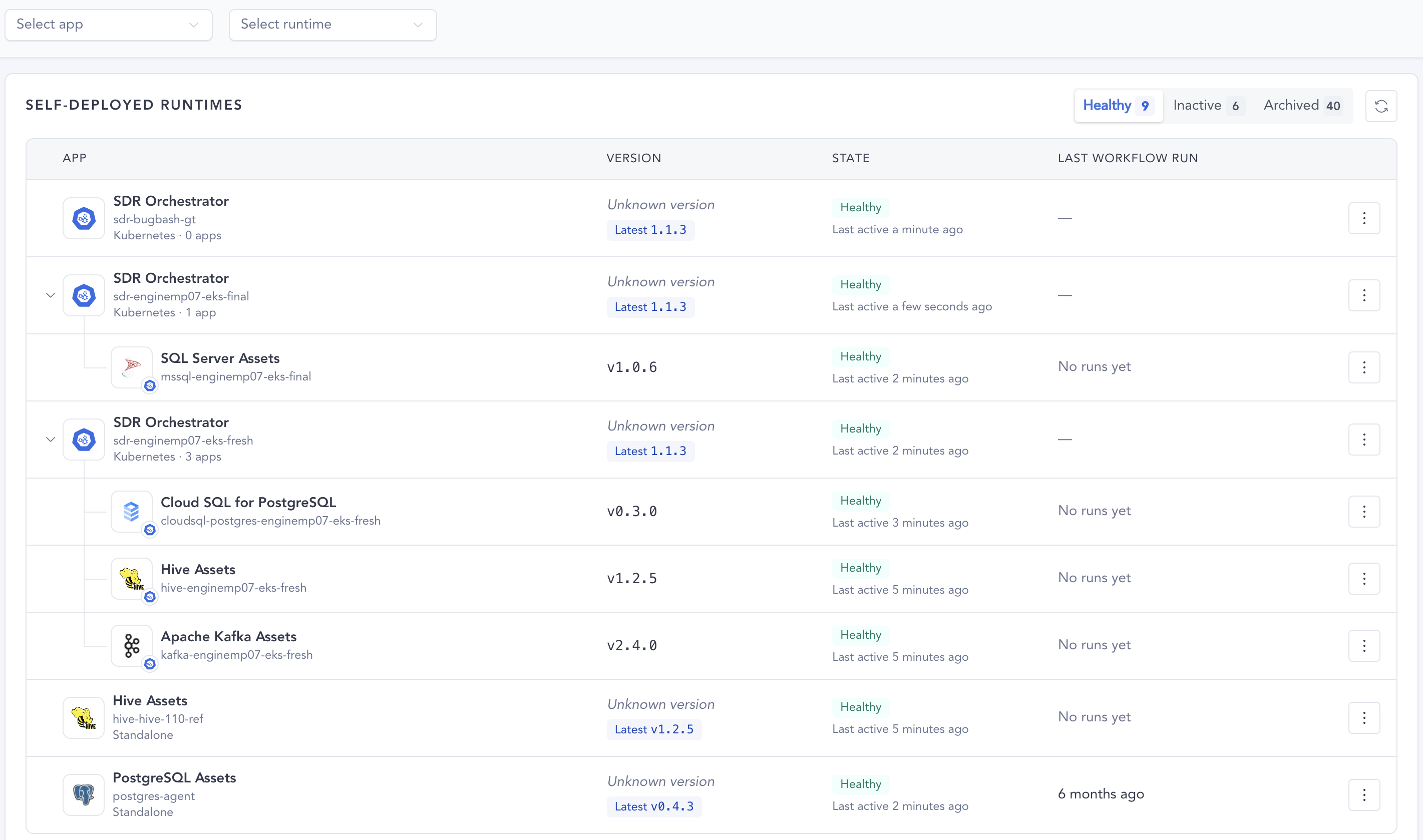
- The list opens on Healthy apps. Click Healthy, Inactive, or Archived to show one state; click the selected state again to show every state.
- Use Select app to show one connector across all runtimes, and Select runtime to show the apps of one runtime. The orchestrator stays visible directly before its matching apps.
Each row shows:
- Version: the image version the app runs.
- On latest means the app runs the latest release available to your tenant.
- When a newer release is available, an orange Latest label shows that version and how many days behind your version is.
- Hover over a version to see when it was released.
- Unknown version means the image predates version reporting.
- State: the app's state and when it was last active.
- Last workflow run: when the app last ran a workflow. An app can be healthy but unused; this column shows whether it's doing work. Orchestrators don't run workflows, so they show none.
Click an app row to open the app's overview and its workflow runs.
Install app
Add a connector app when you need to run workflows for a new source system. Each connector runs as its own app.
- SDR Orchestrator
- SDR Single App
The SDR Orchestrator must show Healthy in Workflows > Deployments before you install apps.
- Go to Workflows > Marketplace.
- Find the connector you want to install and click Install.
- In the Choose install environments modal, select the SDR agents on which to install the app. The Cloud Tenant is always selected.
- Click Install.
The orchestrator pulls the image, provisions OAuth credentials, and starts the container. The app appears under its orchestrator in Workflows > Deployments once it sends its first heartbeat.
To install the app on more SDR agents later, open the app in the Marketplace sidebar and click Install on more environments.
Each connector runs as a separate container. To add a connector, deploy a new service for it:
- Docker Compose: follow the Docker Compose install guide.
- Kubernetes: deploy a new manifest or Helm release. Follow the Kubernetes install guide.
Manage installed apps
Open the ⋮ menu on a row to see the actions available for that app.
View workflow runs
Opens the app's overview with its recent workflow runs. Not available for orchestrators, because they don't run workflows.
Update app
Keep apps current to pick up bug fixes, new source system support, security fixes, and performance improvements. Updates are non-disruptive: active workflows finish before the container is replaced.
- SDR Orchestrator
- SDR Single App
Apps managed by an SDR Orchestrator, and the orchestrator image itself, update automatically. You don't need to do anything.
If an orchestrator-managed app stays behind the latest release, check that your orchestrator can pull the new image. If you use a private registry, mirror the new image first; see Mirror images to a private registry.
When a standalone app is behind the latest release, open its ⋮ menu and click Get update files. This downloads the files you need to update the image on your existing deployment:
- Docker Compose: the updated app YAML to merge into your Docker Compose setup.
- Kubernetes: a values patch with the new image to apply to your existing release.
No new credentials are issued. Then apply the update.
Docker Compose:
docker compose pull
docker compose up -d
Kubernetes:
helm upgrade <release-name> <chart> --reuse-values -f <values-patch>.yaml -n <namespace>
Or update the image directly:
kubectl set image deployment/<app-deployment> <container>=<new-image>:<new-tag> -n <namespace>
Redeploy
Available for healthy apps managed by an SDR Orchestrator.
- Redeploy all apps (on an orchestrator) reinstalls every app on that runtime.
- Redeploy app (on an app) reinstalls that app only.
Redeploying reinstalls the app through the orchestrator at the latest release available to your tenant. Use it when an app's container was changed or removed outside Atlan, or when an app is stuck after you fix its configuration, network access, or credentials. It doesn't change the app's workflows.
Remove
Remove takes an app or runtime out of Atlan: it disappears from this tab and from runtime pickers, and Atlan stops tracking and upgrading it. It doesn't stop or delete anything on your infrastructure, so stop the container first, then remove it in Atlan.
-
Stop the app on your infrastructure.
Docker Compose:
docker compose downKubernetes:
helm uninstall <release-name> -n <namespace>Or, without Helm:
kubectl delete deployment <app-deployment> -n <namespace> -
Wait until the app shows Inactive (no heartbeat for over 40 minutes).
-
Open its ⋮ menu and click Remove.
To remove an SDR Orchestrator, stop its apps first. The orchestrator can be removed once it's inactive and none of its apps is Healthy.
If a removed app starts again, it registers itself again and reappears. Only users with the Admin role see Remove.
Secure Agent 1.0
Apps running on Secure Agent 1.0 appear with a Deprecated label. Secure Agent 1.0 is being retired; move these runtimes to a Self-Deployed Runtime to keep receiving updates. See Migrate to SDR.
Secure Agent 1.0 apps follow the same states. They don't report versions, so the version column is empty, and they can only be removed after 30 days without a heartbeat. A removed Secure Agent 1.0 app doesn't register again on its own; to bring it back, reinstall its Helm chart.
Needs attention and updates
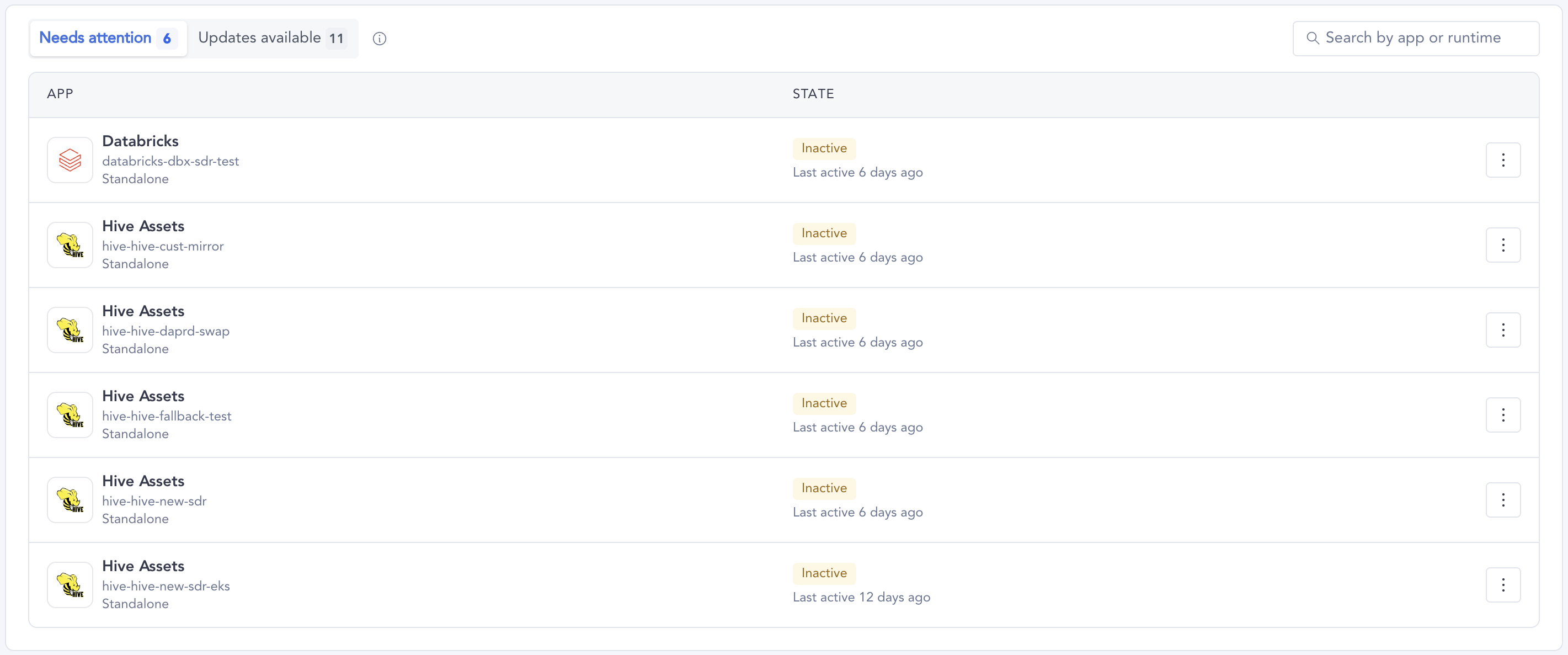
When some apps need your attention or have an update available, a panel at the top of the tab lists them, and a red number on the Deployments tab label shows how many need attention. The panel has two lists:
- Needs attention: apps that have been Inactive for less than 30 days. When Atlan detects a problem with a running app, a Reason column describes it; hover over the reason for the suggested fix.
- Updates available: apps running an older image than the latest release available to your tenant.
Use the search box to find an app or runtime by name. When nothing needs attention and every app is up to date, the panel isn't shown.
See also
- App management concepts: how SDR manages the app lifecycle
- SDR Orchestrator image and versioning
- Mirror images to a private registry
- Configure workflow execution: set up workflows to run on SDR apps
- SDR Orchestrator FAQ: troubleshoot app install and update issues