Route egress through proxy
Route all Self-Deployed Runtime outbound traffic through a forward or egress proxy for inspection, auditing, and compliance—then verify it end to end.
Many organizations require all outbound traffic to leave through a single, auditable egress point. Self-Deployed Runtime supports this out of the box: it honors standard proxy environment variables, so you can route every connection it makes to Atlan through a forward or egress proxy for logging, inspection, and compliance.
This complements network allowlisting. Use a firewall to restrict where traffic can go, and a proxy to inspect and audit it. The guided install wizard also surfaces the HTTP proxy and custom-CA options during setup.
What outbound traffic to expect
The SDR makes outbound connections to these Atlan endpoints—allowlist them and keep them out of NO_PROXY:
| Destination | Port | Protocol | Traffic |
|---|---|---|---|
<your-tenant>.atlan.com | 443 | HTTPS | Authentication, workflow events, and metadata/file uploads |
<your-tenant>-temporal.atlan.com | 443 | gRPC/TLS | Workflow-engine connection |
Choose your path
Your proxy configuration follows from one question: does your policy require connection-level auditing only, or payload inspection too?
| Requirement | Approach | What it implicates |
|---|---|---|
| Audit only: prove all egress leaves through one logged point (which host, when, how much) | Pass-through proxy (no decryption) | Nothing is decrypted, nothing breaks, there is no CA to manage, and no Atlan credentials are exposed in proxy logs. Satisfies most "single auditable egress" mandates. |
| Audit and payload inspection: also inspect request contents (for example, DLP or deep compliance) | TLS inspection (decryption) | Requires trusting the proxy's CA, forwarding uploads byte-for-byte so their SigV4 signatures don't break, and HTTP/2 tuning for the workflow engine. Decryption also places Atlan auth tokens and upload signatures in cleartext in proxy logs—redact and access-control them. |
Both approaches give a complete connection-level audit trail. Select the narrowest that meets your requirement and follow only that path.
- Audit only (pass-through)
- Audit + payload inspection (TLS inspection)
The proxy tunnels the SDR's encrypted traffic and logs each connection—destination, timestamp, and data volume—without decrypting anything.
Before you begin
Make sure you have:
- A proxy reachable from the SDR host that supports HTTP
CONNECT(required to tunnel HTTPS and gRPC). - Administrative access to set environment variables on the SDR.
Step 1: Point SDR at your proxy
Set the standard proxy environment variables so the SDR sends its traffic through the proxy:
HTTP_PROXY=http://YOUR_PROXY_HOST:PORT
HTTPS_PROXY=http://YOUR_PROXY_HOST:PORT
If your proxy requires authentication, provide the credentials in the URL (HTTP Basic):
HTTPS_PROXY=http://YOUR_PROXY_USER:YOUR_PROXY_PASSWORD@YOUR_PROXY_HOST:PORT
Prefer an unauthenticated proxy on a trusted network segment—then there is no proxy credential to manage. If you must authenticate, percent-encode any reserved characters in the password (@ → %40, : → %3A), and be aware that credentials in HTTPS_PROXY are readable by anyone who can inspect the SDR's environment (for example, docker inspect or process listings). Where your platform supports it, populate the value from a Kubernetes Secret or Docker secret instead of hardcoding it. SDR's secret vault stores source-system credentials, not proxy settings, so it doesn't apply here.
Keep local or internal traffic off the proxy with NO_PROXY. For example, a self-hosted object store or secret store running alongside the SDR:
NO_PROXY=localhost,127.0.0.1,your-internal-object-store-host
Set these wherever your deployment defines the SDR's environment:
- Docker Compose
- Kubernetes
- Orchestrator
Add them to the environment: block of the SDR service in your docker-compose.yml:
services:
  runtime:
    environment:
      HTTP_PROXY: http://YOUR_PROXY_HOST:PORT
      HTTPS_PROXY: http://YOUR_PROXY_HOST:PORT
      NO_PROXY: localhost,127.0.0.1,your-internal-object-store-host
Add the variables to the SDR container's environment in your generated values.yaml. Because Atlan generates this file, use the guided install wizard as the source of truth—it emits the exact keys for the HTTP proxy option.
Add them to the Orchestrator's .env file:
HTTP_PROXY=http://YOUR_PROXY_HOST:PORT
HTTPS_PROXY=http://YOUR_PROXY_HOST:PORT
NO_PROXY=localhost,127.0.0.1,your-internal-object-store-host
The Orchestrator passes its environment to every app container it starts, so setting the variables once applies them to all apps it runs.
All traffic types (authentication, workflow events, the workflow engine, and uploads) honor these settings.
Step 2: Allow long-lived workflow connections
Pass-through decrypts nothing, so there is no CA to trust and no request rewriting to worry about. The one thing to check: the workflow-engine connection to <your-tenant>-temporal.atlan.com is a long-lived gRPC stream, so set generous idle and connection timeouts on the proxy or it may drop the tunnel during quiet periods.
Then restart the SDR so it picks up the new environment.
Step 3: Verify egress flows through proxy
Confirm each traffic type reaches Atlan through the proxy. In your proxy's access log or dashboard you can see:
| Request | Expected |
|---|---|
POST <your-tenant>.atlan.com/auth/realms/.../token | 200 |
POST <your-tenant>.atlan.com/api/eventingress/ | 200 |
gRPC to <your-tenant>-temporal.atlan.com | 200 |
PUT <your-tenant>.atlan.com/api/blobstorage/... (during a workflow) | 200 |
If all of these appear with 200 responses, egress is correctly routed through your proxy. Because nothing is decrypted, the payloads stay opaque—you get destination, timestamp, and data volume for a complete connection-level audit trail.
Troubleshooting
| Symptom | Cause and fix |
|---|---|
| Workflow-engine connection drops or times out | Raise the proxy's idle and connection timeouts—the gRPC stream to <your-tenant>-temporal.atlan.com is long-lived. |
| Some egress doesn't appear at the proxy | Confirm the variables are set in the SDR's container environment (not just your shell), and set both the upper- and lowercase forms (HTTP_PROXY and http_proxy). |
| Local object-store or secret traffic fails | Add those hosts to NO_PROXY; they shouldn't go through the proxy. |
The proxy decrypts the traffic so you can inspect and log full request payloads—headers, timing, and the metadata a workflow uploads—alongside the connection record.
Before you begin
Make sure you have:
- A proxy reachable from the SDR host that supports HTTP
CONNECT(required to tunnel HTTPS and gRPC). - Administrative access to set environment variables on the SDR.
- The proxy's CA certificate in PEM format (root plus any intermediates).
- A proxy that's HTTP/2-capable and can forward requests without modifying them (see Step 3).
Step 1: Point SDR at your proxy
Set the standard proxy environment variables so the SDR sends its traffic through the proxy:
HTTP_PROXY=http://YOUR_PROXY_HOST:PORT
HTTPS_PROXY=http://YOUR_PROXY_HOST:PORT
If your proxy requires authentication, provide the credentials in the URL (HTTP Basic):
HTTPS_PROXY=http://YOUR_PROXY_USER:YOUR_PROXY_PASSWORD@YOUR_PROXY_HOST:PORT
Prefer an unauthenticated proxy on a trusted network segment—then there is no proxy credential to manage. If you must authenticate, percent-encode any reserved characters in the password (@ → %40, : → %3A), and be aware that credentials in HTTPS_PROXY are readable by anyone who can inspect the SDR's environment (for example, docker inspect or process listings). Where your platform supports it, populate the value from a Kubernetes Secret or Docker secret instead of hardcoding it. SDR's secret vault stores source-system credentials, not proxy settings, so it doesn't apply here.
Keep local or internal traffic off the proxy with NO_PROXY. For example, a self-hosted object store or secret store running alongside the SDR:
NO_PROXY=localhost,127.0.0.1,your-internal-object-store-host
Set these wherever your deployment defines the SDR's environment:
- Docker Compose
- Kubernetes
- Orchestrator
Add them to the environment: block of the SDR service in your docker-compose.yml:
services:
  runtime:
    environment:
      HTTP_PROXY: http://YOUR_PROXY_HOST:PORT
      HTTPS_PROXY: http://YOUR_PROXY_HOST:PORT
      NO_PROXY: localhost,127.0.0.1,your-internal-object-store-host
Add the variables to the SDR container's environment in your generated values.yaml. Because Atlan generates this file, use the guided install wizard as the source of truth—it emits the exact keys for the HTTP proxy and custom-CA options.
Add them to the Orchestrator's .env file:
HTTP_PROXY=http://YOUR_PROXY_HOST:PORT
HTTPS_PROXY=http://YOUR_PROXY_HOST:PORT
NO_PROXY=localhost,127.0.0.1,your-internal-object-store-host
The Orchestrator passes its environment to every app container it starts, so setting the variables once applies them to all apps it runs.
All traffic types (authentication, workflow events, the workflow engine, and uploads) honor these settings.
Step 2: Trust proxy's CA
When a proxy decrypts traffic, it presents a certificate signed by its own CA. The SDR must trust that CA or connections fail. Place the CA files in a directory and point SSL_CERT_DIR at it:
SSL_CERT_DIR=/path/to/ca-directory
The directory must contain the CA as .pem, .crt, .cer, or .ca-bundle files. This trust applies to all traffic types, including uploads.
Because the SDR runs in a container, SSL_CERT_DIR must resolve inside the container, so mount the CA directory in and point the variable at the mount path:
- Docker Compose
- Kubernetes
- Orchestrator
Bind-mount the CA directory into the SDR service and set SSL_CERT_DIR to the mount path:
services:
  runtime:
    volumes:
      - ./proxy-ca:/etc/ssl/proxy-ca:ro
    environment:
      SSL_CERT_DIR: /etc/ssl/proxy-ca
Supply the CA as a mounted ConfigMap or Secret volume and set SSL_CERT_DIR to the mount path. The guided install wizard emits the custom-CA trust option for your generated values.yaml.
Mount the CA directory into the Orchestrator and set SSL_CERT_DIR to the mount path once. The Orchestrator propagates the mounted CA and SSL_CERT_DIR to every app container it starts.
Step 3: Configure TLS inspection
Decryption lets you inspect request payloads, but two traffic types need care:
- Metadata/file uploads are signed with AWS SigV4. The proxy must forward these requests byte-for-byte (no
Host, header, or body rewriting), or the signature fails. - The workflow-engine connection is gRPC over HTTP/2 and long-lived. Use an HTTP/2-capable proxy with generous idle and connection timeouts.
If inspection breaks either path, a common pattern is to decrypt the tenant domain and exempt <your-tenant>-temporal.atlan.com from decryption (a "don't inspect" rule), while keeping full connection-level logging for it.
Decrypting <your-tenant>.atlan.com places the Atlan authentication token and the SigV4 signing material in cleartext where the proxy can capture and retain them. Redact the Authorization header in proxy logs and restrict who can read captured requests.
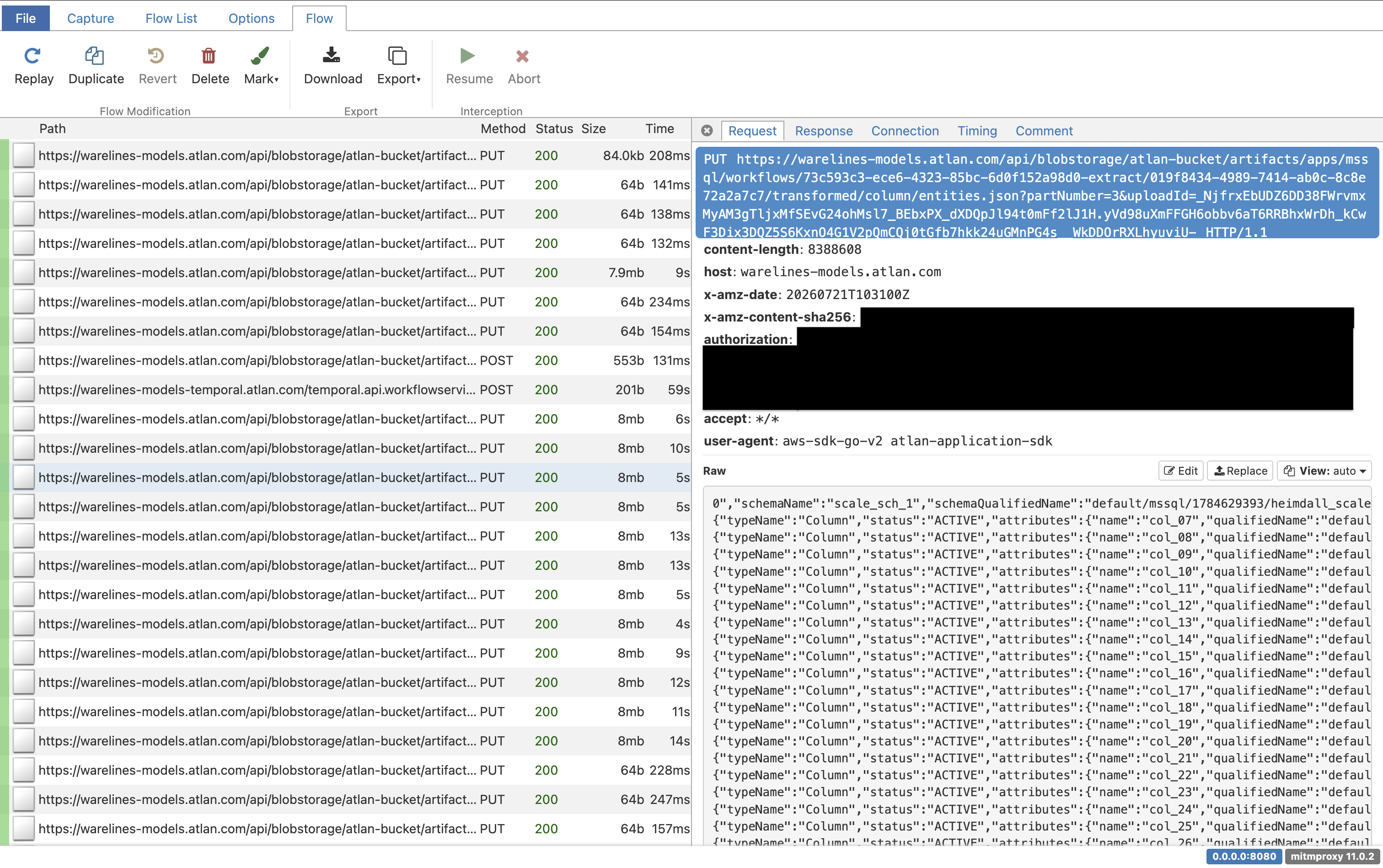
With TLS inspection on, the decrypted payload becomes visible in your proxy's request UI. For example, here a metadata upload is selected—the metadata it sends to Atlan is fully readable in the request body, so you can inspect and analyze exactly what the SDR uploads:
Then restart the SDR so it picks up the new environment and CA trust.
Step 4: Verify egress flows through proxy
Confirm each traffic type reaches Atlan through the proxy. In your proxy's access log or dashboard you can see:
| Request | Expected |
|---|---|
POST <your-tenant>.atlan.com/auth/realms/.../token | 200 |
POST <your-tenant>.atlan.com/api/eventingress/ | 200 |
gRPC to <your-tenant>-temporal.atlan.com | 200 |
PUT <your-tenant>.atlan.com/api/blobstorage/... (during a workflow) | 200 |
If all of these appear with 200 responses, egress is correctly routed through your proxy. With decryption on, you can also inspect each call—headers, timing, and the request bodies (for example, the metadata a workflow uploads).
Troubleshooting
| Symptom | Cause and fix |
|---|---|
| TLS / certificate errors on all traffic | The SDR doesn't trust the proxy's CA. Complete Step 2, and confirm the CA directory is mounted inside the container. |
| Uploads fail with signature errors | The proxy is modifying requests during inspection. Configure it to forward Host, headers, and body unchanged, or exempt uploads from decryption. |
| Workflow-engine connection drops or times out | Raise the proxy's idle and connection timeouts and enable HTTP/2. Consider a do-not-inspect rule for the <your-tenant>-temporal.atlan.com domain. |
| Local object-store or secret traffic fails | Add those hosts to NO_PROXY; they shouldn't go through the proxy. |
See also
- Configure network security: Firewall rules that restrict outbound traffic to approved Atlan endpoints.
- Security: Security architecture, encryption, and compliance controls.
- Install with the guided wizard: Assembles a setup guide, including HTTP proxy and custom-CA options.
Need help
If you are still facing issues and need help, contact security@atlan.com for assistance.