Set up Docker Hub access for SDR images
Pull Self-Deployed Runtime images from Docker Hub with your organization's own Docker ID and an access token you manage.
SDR requires additional enablement and licensing. Contact your Atlan representative for details.
Self-Deployed Runtime (SDR) images live in Atlan's private atlanhq/* repositories on Docker Hub. To pull them, you add a Docker Hub account that your organization owns from Atlan. Atlan invites that account to a restricted group that can only pull Atlan app images, and your deployments sign in to Docker Hub with that account and an access token you create.
This is how every SDR deployment gets access to images:
- Pull-only access, scoped to Atlan app images. The account can pull the SDR orchestrator and connector images. It can't push, and it can't see any other repositories.
- Your credentials, your rotation schedule. You create and rotate the access token on your own Docker Hub account. Atlan never sees it.
- Revoke access at any time. Disconnecting removes the account's access immediately.
If your deployments sign in to Docker Hub as atlanhq with a token you received from your Atlan representative, that method is deprecated and is being retired. Set up access with your own Docker ID and move your existing deployments now, so image pulls keep working. Your Atlan representative can confirm the retirement timeline.
This option is rolling out gradually. If you don't see Docker Hub under Admin > Integrations yet, contact your Atlan representative.
Prerequisites
- You're an Atlan admin.
- A Docker Hub account that your organization controls. A dedicated service account is recommended over a personal one, so that access doesn't depend on one person. Any Docker Hub plan works.
- Access to the inbox of the email address registered on that Docker Hub account, to accept the invitation.
Invite your Docker Hub account
-
In Atlan, go to Admin > Integrations. Under Self-deployed runtime, find the Docker Hub card.
-
On the card, click Connect Docker Hub.
-
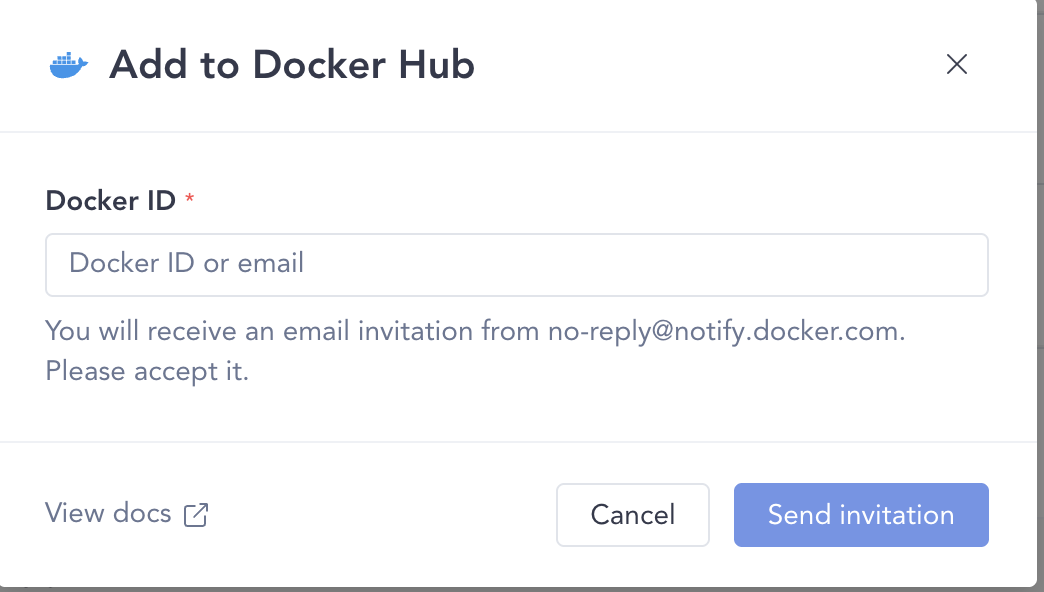
In Add to Docker Hub, enter the Docker ID or email of your Docker Hub account, and then click Send invitation.
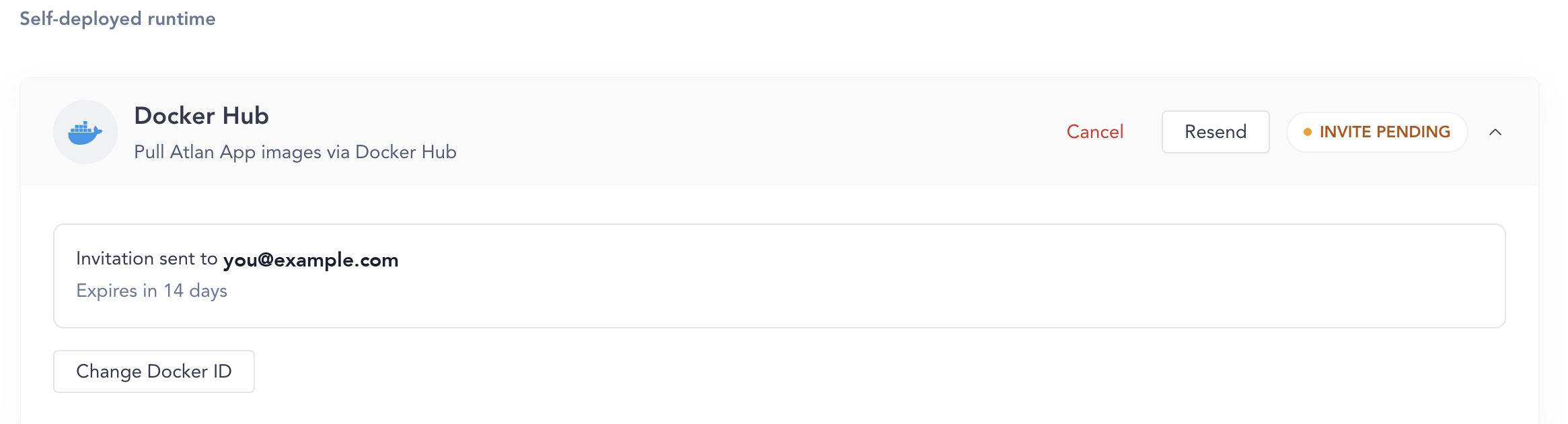
The card shows INVITE PENDING and how many days are left before the invitation expires.
-
Accept the invitation. Docker Hub sends it from
no-reply@notify.docker.comto the email address registered on the account. You can also accept it from the notifications panel after you sign in to Docker Hub. -
Return to Admin > Integrations. Once the invitation is accepted, the card shows CONNECTED.
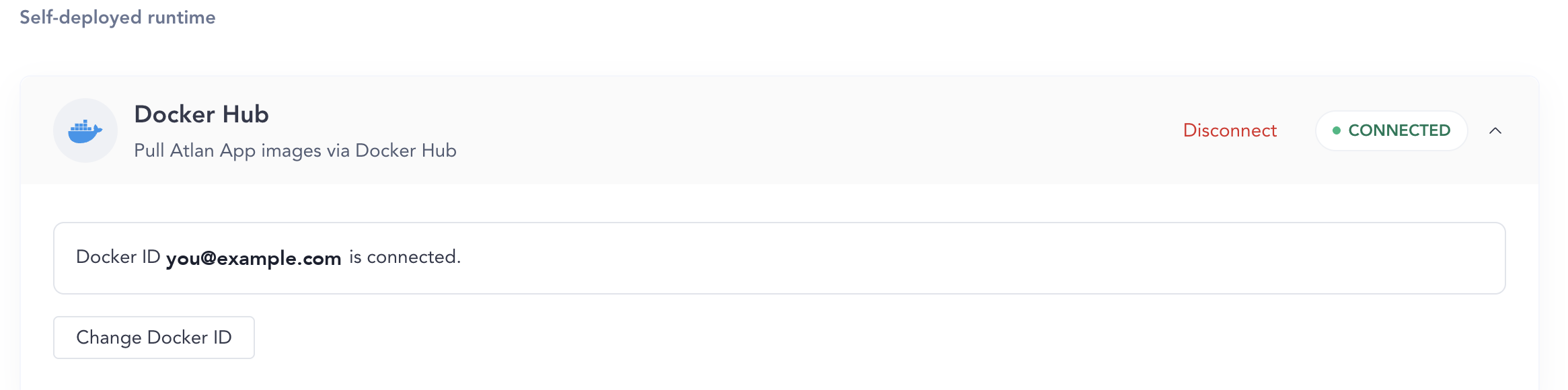
If your organization has more than one Atlan tenant, one Docker ID covers all of them. Connect it from any one tenant; the others show the same connection.
Sign in to Docker Hub with your Docker ID
-
In Docker Hub, signed in as the connected account, create a personal access token with Read-only access. See Docker's guide to access tokens.
-
Sign in with the Docker ID you invited from Atlan, not
atlanhq, and that token wherever your deployment needs Docker Hub credentials. The guided install shows each of these in context:-
Docker hosts:
docker login -u YOUR_DOCKER_ID# When prompted for a password, enter YOUR_DOCKER_HUB_ACCESS_TOKEN -
Podman hosts:
podman login -u YOUR_DOCKER_ID docker.io# When prompted for a password, enter YOUR_DOCKER_HUB_ACCESS_TOKEN -
SDR Orchestrator on Docker or Podman: also set the
container_registrycredentials inconfig.yaml:container_registry:username: "YOUR_DOCKER_ID"password: "YOUR_DOCKER_HUB_ACCESS_TOKEN" -
Kubernetes: create the image pull secret with your Docker ID and token. Use
atlan-registry-credsfor SDR Orchestrator, oratlan-docker-secretfor a single-app deployment:kubectl create secret docker-registry atlan-registry-creds \--docker-server=docker.io \--docker-username=YOUR_DOCKER_ID \--docker-password=YOUR_DOCKER_HUB_ACCESS_TOKEN \-n YOUR_NAMESPACE
-
-
Test a pull of an image you deploy, for example
docker pull atlanhq/atlan-sdr-orchestrator:YOUR_VERSION_TAG. If it succeeds, your SDR deployments can pull every Atlan app image with the same credentials.
Move existing deployments to your Docker ID
If a deployment already signs in to Docker Hub as atlanhq with the token provided by Atlan, switch it to your Docker ID. Running apps keep running during the switch; the new credentials apply to the next image pull.
-
Invite your Docker Hub account and wait for the card to show CONNECTED.
-
Create a read-only access token for that account.
-
Replace the credentials on each deployment:
-
Docker or Podman hosts: run
docker login -u YOUR_DOCKER_ID(orpodman login -u YOUR_DOCKER_ID docker.io). Signing in replaces the storedatlanhqcredentials for Docker Hub. -
SDR Orchestrator on Docker or Podman: also update
usernameandpasswordundercontainer_registryinconfig.yaml, then restart the orchestrator withdocker compose restart(orpodman compose restart). -
Kubernetes: replace the pull secret in place, in the same namespace and with the same name, so nothing that references it needs to change:
kubectl create secret docker-registry atlan-registry-creds \--docker-server=docker.io \--docker-username=YOUR_DOCKER_ID \--docker-password=YOUR_DOCKER_HUB_ACCESS_TOKEN \-n YOUR_NAMESPACE \--dry-run=client -o yaml | kubectl apply -f - -
Mirroring jobs: if you copy Atlan images into your own registry, update the
docker loginstep in that job to use your Docker ID.
-
-
Test a pull with the new credentials, as described in Sign in to Docker Hub with your Docker ID.
-
Remove the token provided by Atlan from your hosts, CI/CD pipelines, and secret stores.
Manage connection
All of these actions are on the Docker Hub card under Admin > Integrations.
| Situation | What to do |
|---|---|
| Invitation email didn't arrive, or got lost | Click Resend. A new invitation replaces the old one and the expiry restarts. |
| Invitation expired (INVITE EXPIRED) | Click Resend to send a new one. |
| Typo in the Docker ID before the invitation is accepted | Click Change Docker ID to invite the right account, or Cancel to withdraw the invitation. The old invitation link stops working. |
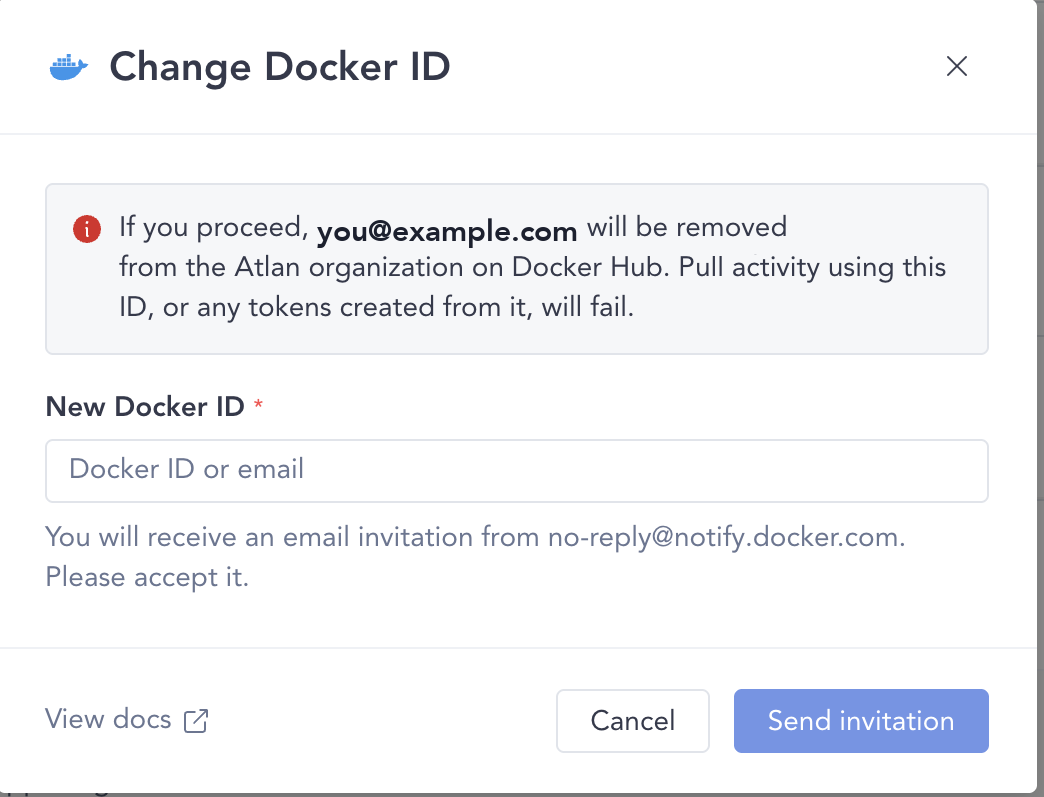
| Switch to a different Docker Hub account after connecting | Click Change Docker ID and enter the new account. The old account loses access as soon as you confirm, so update your pull credentials once the new invitation is accepted. |
| You no longer want this account to pull Atlan images | Click Disconnect. Its access is removed immediately and pulls with its credentials start failing. Reconnecting needs a new invitation. |
Change Docker ID warns you before removing the connected account:
Troubleshooting
requested access to the resource is deniedwhen pulling: check that the card shows CONNECTED, that you signed in with the connected Docker ID (notatlanhq), and that the token belongs to that account.unauthorized: incorrect username or password: the access token is wrong, expired, or revoked. Create a new one in Docker Hub and sign in again.- The Docker Hub card isn't visible: only admins can see it, and the option is still rolling out. Contact your Atlan representative.
See also
- Install runtime (guided): install SDR with your Docker ID.
- Image procurement approach: decide between pulling from Docker Hub and mirroring to your own registry.
- Keep a private registry in sync: mirror images using the same Docker Hub credentials.
- Verify container images: verify image signatures with Cosign.