Create announcements
Adding an announcement to your data asset helps you call attention to an important feature or notify others about a change coming down the pipeline. Since announcements in Atlan display the time stamp and author information, you can easily identify whether an announcement is still relevant and who to ask for questions.
Adding an announcement to your data asset helps you call attention to an important feature or notify others about a change coming down the pipeline. Since announcements in Atlan display the time stamp and author information, you can easily identify whether an announcement is still relevant and who to ask for questions.
What type of announcements would you want to share with your team? Here are a few examples:
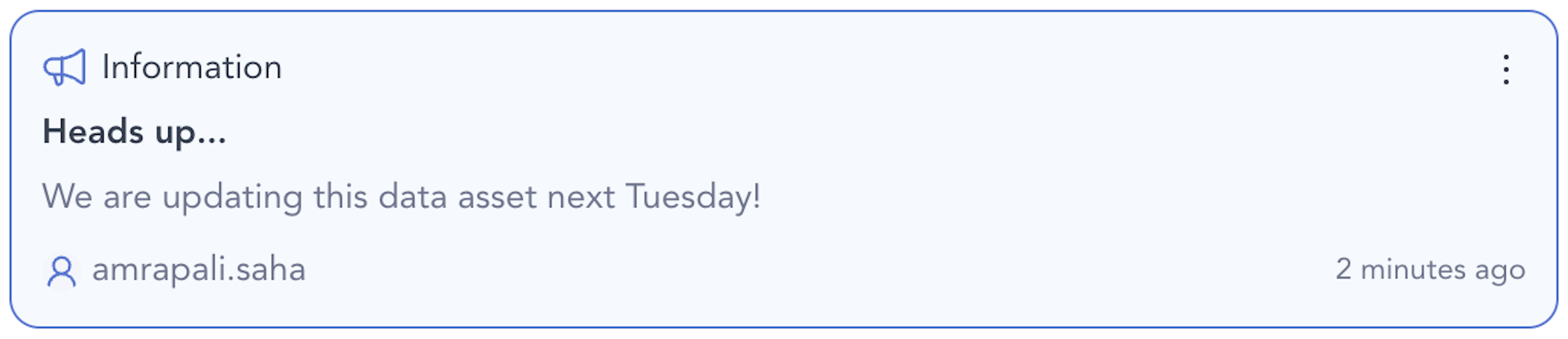
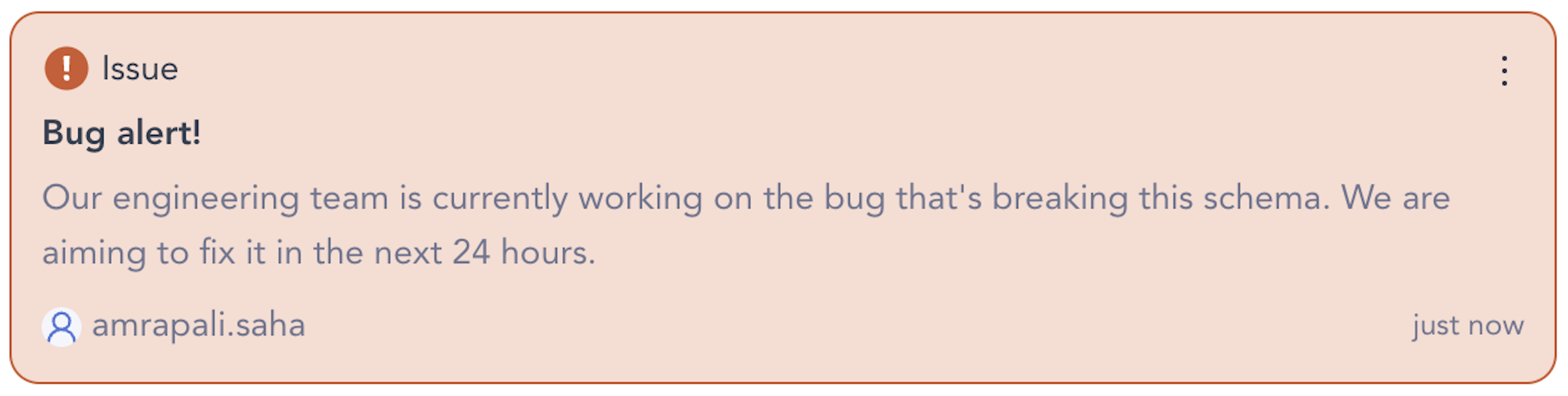
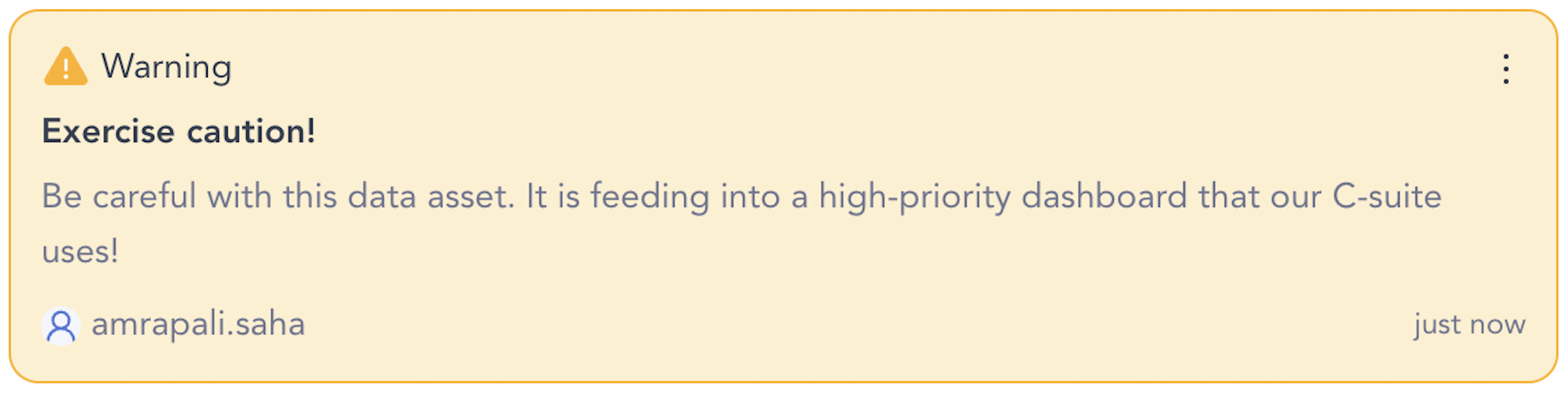
Add an announcements
To add an announcement to an asset:
- From the left menu of any screen in Atlan, click all assets.
If you are using the Old UI (Classic), from the left menu of any screen in Atlan, click Assets.
- On the Assets page, select an asset to add an announcement. You can either:
- Open the asset profile. From the top right of the Overview tab in the asset profile, click the vertical 3-dot icon, and then from the dropdown, click Add announcement.
- In the Overview tab of the asset sidebar, click the horizontal 3-dot icon, and then from the dropdown, click Add announcement.
- In the New Announcement dialog, enter the following details:
-
From the top right, click the downward arrow and choose from three announcement types: Information, Issue, or Warning.
-
For Add title, enter a title for the announcement.
-
For Description, enter a description for the announcement.
- (Optional) You can include HTML hyperlinks to direct users to additional information - for example, wrap the text with
<a href="https://my.url.com">description text</a>. - (Optional) You can use Markdown syntax to write a description. Any headings are rendered in heading 6 (
<h6>).
warningAtlan currently doesn't support adding images to announcements.
- (Optional) You can include HTML hyperlinks to direct users to additional information - for example, wrap the text with
-
(Optional) To share the announcement on Slack or Teams, you can either:
- Click the Share button to integrate Slack or Microsoft Teams.
- If you've already integrated Slack or Microsoft Teams, click the checkbox for Share on Slack or Share on Teams, respectively.
-
(Optional) To configure the announcements channel for Slack or Teams:
- If you have already configured a Slack or Microsoft Teams channel to receive announcement alerts, that channel is preselected. You can change to a different channel, if available.
- If you haven't configured a channel for announcements, enter the channel name to receive notifications for announcements. This channel is displayed as the Announcements channel in the Slack or Microsoft Teams integration.
-
Click Add to create the announcement.
-
- (Optional) To edit an announcement, from the top right of the announcement box, click the 3-dot icon and then click Edit.
- (Optional) To delete an announcement, from the top right of the announcement box, click the 3-dot icon and then click Delete.
An announcement has been created! 🎉
This announcement is visible to anyone who views the asset. You can also create similar announcements for other types of data assets, including glossaries, categories, and terms.
To create, remove, and manage announcements using API, refer to the developer documentation.
You can only create one announcement per asset. To add more information to the announcement, you can either edit the existing one to update it or delete the old one and create a new announcement.