Querying Gold namespace
Best practices for querying and using the Gold namespace efficiently.
This page provides best practices and recommended approaches for querying and using the Gold namespace efficiently.
Query foundations
Every Gold namespace query needs a solid foundation. These practices help you build queries that stay consistent as metadata changes and perform well at scale.
Start with assets table
What to do: Begin every query with the assets table, then join to specialized tables as needed.
Why it matters: assets table is your central catalog. It contains core metadata for every asset (tables, dashboards, columns, etc.) in one place. Starting here gives you a complete view before you add quality, glossary, or relational details.
How to implement:
- Start with
SELECT * FROM assets - Add filters to narrow to your scope (connector, asset type, status)
- Join to detail tables like
relational_asset_details,glossary_details, ordata_quality_detailsonly after filtering
Example:
-- Start with assets, filter early, then join
SELECT
    a.asset_name,
    a.asset_type,
    r.table_row_count
FROM gold.assets a
LEFT JOIN gold.relational_asset_details r ON a.guid = r.guid
WHERE a.status = 'ACTIVE'
  AND a.connector_name = 'snowflake'
  AND a.asset_type = 'Table'
See also: assets reference for full column list and usage patterns.
Use GUID for joins
What to do: Always join tables using GUID fields, not asset names or qualified names.
Why it matters: GUIDs are permanent identifiers. Asset names can change (tables get renamed, dashboards get updated), but GUIDs stay the same. Joining on names can cause joins to break or return incomplete results after renames.
How to implement:
- Join
assetsto detail tables usingassets.guid = [detail_table].guid - Use asset names in your
SELECTclause for readability, not inJOINorWHEREclauses - If you must filter by name, do it after the join
Example:
--  Good: Join on GUID
SELECT
    a.asset_name,
    r.table_column_count
FROM gold.assets a
JOIN gold.relational_asset_details r ON a.guid = r.guid

--  Avoid: Join on name
SELECT
    a.asset_name,
    r.table_column_count
FROM gold.assets a
JOIN gold.relational_asset_details r ON a.asset_name = r.database_name  -- Brittle!
Filter and scope queries
Filtering early keeps queries fast and costs low. Apply the right filters at the right time to scan only the data you need.
Filter early in queries
What to do: Apply filters on assets before joining to other tables.
Why it matters: Filtering a 10-row result set is cheaper than filtering 10 million rows after joins. Early filters reduce the amount of data scanned and the size of intermediate results, which improves performance and lowers warehouse costs.
How to implement:
- Apply your most selective filters first (status, connector, asset type)
- Filter on
assetsbefore any joins - Add detail view joins only after the base set is narrowed
Example:
--  Good: Filter on assets first
SELECT
    a.asset_name,
    r.table_row_count,
    r.table_size_bytes
FROM gold.assets a
LEFT JOIN gold.relational_asset_details r ON a.guid = r.guid
WHERE a.status = 'ACTIVE'
  AND a.connector_name = 'bigquery'
  AND a.asset_type = 'Table'

--  Less efficient: Filter after joining
SELECT
    a.asset_name,
    r.table_row_count,
    r.table_size_bytes
FROM gold.assets a
LEFT JOIN gold.relational_asset_details r ON a.guid = r.guid
WHERE a.status = 'ACTIVE'  -- Large join happens first
Use common filters for targeted analysis
What to do: Use these filters to narrow your result set before adding complexity.
Why it matters: Focused queries are faster and easier to maintain. These filters cover common scenarios and help you build reusable query templates.
| What you want | Column to filter | Example |
|---|---|---|
| Specific connector | connector_name | WHERE connector_name = 'snowflake' |
| Specific asset type | asset_type | WHERE asset_type = 'Table' |
| Active assets only | status | WHERE status = 'ACTIVE' |
| Certified assets | certificate_status | WHERE certificate_status = 'VERIFIED' |
| Assets with owners | owner_users | WHERE ARRAY_SIZE(owner_users) > 0 |
| Popular assets | popularity_score | WHERE popularity_score > 50 |
| Assets with lineage | has_lineage | WHERE has_lineage = true |
| Assets with terms | term_guids | WHERE ARRAY_SIZE(term_guids) > 0 |
| Assets in a domain | domain_guids | WHERE ARRAY_SIZE(domain_guids) > 0 |
| Specific database | asset_qualified_name | WHERE asset_qualified_name LIKE '%/prod_db/%' |
Example query:
-- Find all active Snowflake tables with owners
SELECT
    asset_name,
    owner_users,
    popularity_score
FROM gold.assets
WHERE status = 'ACTIVE'
  AND connector_name = 'snowflake'
  AND asset_type = 'Table'
  AND ARRAY_SIZE(owner_users) > 0
ORDER BY popularity_score DESC
Query performance
These practices help your queries run faster by letting the query engine skip irrelevant data.
Always filter by asset_type first
What to do: Include asset_type = '<value>' as the first predicate in every query.
Why it matters: All GOLD namespace tables are organized by asset_type. Filtering on it first lets the query engine skip large portions of the data that don't match, significantly reducing scan time and cost.
Example:
-- Good: asset_type filter first
SELECT a.asset_name, a.connector_name
FROM gold.assets a
WHERE a.asset_type = 'Table'
  AND a.status = 'ACTIVE'

-- Avoid: no asset_type filter, scans everything
SELECT a.asset_name, a.connector_name
FROM gold.assets a
WHERE a.status = 'ACTIVE'
Always include status = 'ACTIVE'
What to do: Add status = 'ACTIVE' to filter out deleted and archived assets early.
Why it matters: Most queries only need active assets. Including this filter eliminates deleted assets at very low cost and keeps result sets focused.
Pair guid lookups with asset_type
What to do: When looking up a specific asset by guid, always include asset_type in the same query.
Why it matters: A guid-only lookup has to search across all asset types. Adding asset_type narrows the search space and speeds up the lookup.
Example:
-- Good: guid + asset_type
SELECT * FROM gold.assets
WHERE asset_type = 'Table'
  AND guid = 'abc-123-def'

-- Slower: guid alone
SELECT * FROM gold.assets
WHERE guid = 'abc-123-def'
Avoid wrapping columns in functions in WHERE clauses
What to do: Filter columns using literal values directly, rather than applying functions to the column.
Why it matters: Applying functions like LOWER(), YEAR(), or DATE() to a column in a WHERE clause prevents the query engine from using column statistics to skip data. Filter on the raw column value instead.
Example:
-- Good: direct comparison
SELECT * FROM gold.assets
WHERE connector_name = 'snowflake'

-- Avoid: function on column disables optimizations
SELECT * FROM gold.assets
WHERE LOWER(connector_name) = 'snowflake'
Data model
The Gold namespace is a set of related tables. Use the model to plan joins and understand how assets relate across metadata and governance.
Use entity-relationship diagram
What to do: Reference the ER diagram before building complex queries with multiple joins.
Why it matters: The diagram shows how tables connect to each other. Understanding relationships helps you choose the right join path and avoid incomplete or duplicate results.
How to implement:
- Open the ER diagram below
- Identify your starting point (usually
assets) - Trace the relationship path to your target view
- Confirm whether joins are 1:1, 1:many, or many:many
Diagram:
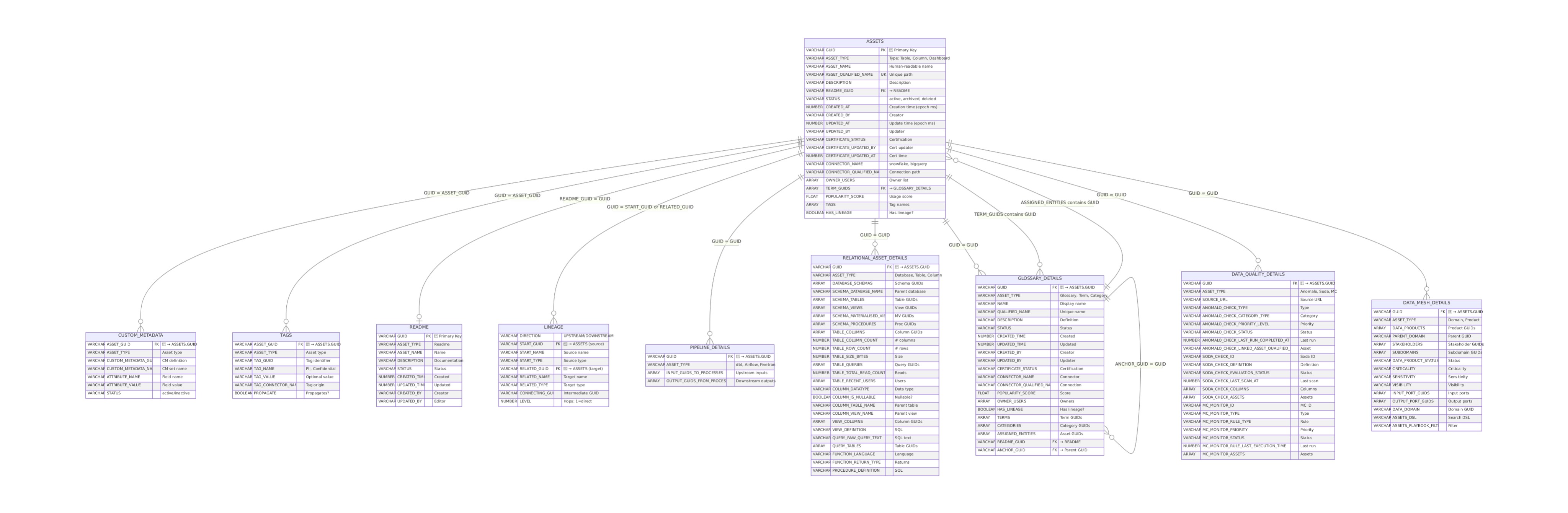
Example use case: If you want relational asset details, the diagram shows that relational_asset_details joins directly to assets via guid. If you want glossary details, glossary_details also joins directly to assets.
Query quality and safety
These practices help you avoid silent errors and unexpected results.
Handle nulls explicitly
What to do: Use COALESCE or explicit NULL checks when filtering or aggregating optional fields.
Why it matters: Many fields in the Gold namespace are optional (owners, descriptions, terms). SQL WHERE clauses exclude rows with NULL values by default, which can silently drop assets from your results.
How to implement:
- Use
COALESCE(column, default_value)when aggregating - Use
column IS NULL OR column = 'value'when filtering - Check for empty arrays with
ARRAY_SIZE(column) = 0instead of assuming NULL
Example:
--  Good: Handle NULLs explicitly
SELECT
    asset_name,
    COALESCE(description, 'No description') AS description,
    ARRAY_SIZE(COALESCE(owner_users, ARRAY_CONSTRUCT())) AS owner_count
FROM gold.assets
WHERE status = 'ACTIVE'

--  Risky: NULL description silently excluded
SELECT asset_name, description
FROM gold.assets
WHERE description LIKE '%customer%'  -- Drops rows where description IS NULL
Test with small result sets
What to do: Add LIMIT 100 to queries during development, then remove it for production runs.
Why it matters: Testing on small result sets reduces compute costs and speeds up iteration. You can validate query logic without scanning millions of rows.
How to implement:
- Add
LIMIT 100to your query - Validate column names, joins, and logic
- Remove the limit when results look correct
- Run the full query or schedule it in a dashboard
Example:
-- During development
SELECT
    a.asset_name,
    a.asset_type,
    g.terms
FROM gold.assets a
LEFT JOIN gold.glossary_details g ON a.guid = g.guid
WHERE a.status = 'ACTIVE'
LIMIT 100;  -- Remove this for production
Joins for common use cases
In the Gold namespace, the assets table is the core table that lists all assets and important attributes. The Gold namespace also contains complementary tables with details for specific asset domains. For example, relational_asset_details contains domain-specific details for relational assets in Atlan, such as the list of columns for a table, so you'll need to join assets with relational_asset_details as part of your query.
This section outlines common relationships and joins that may be helpful.
GUID as universal key
Every asset has a unique GUID. This is your primary key for joining tables. All Gold namespace detail tables share guid as their primary key, so joins are always assets.guid = [detail_table].guid.
Business graph use cases
The glossary_details table contains details about glossaries, categories, and terms in Atlan. To find which terms are on an asset, join assets with glossary_details using assets.term_guids contains glossary_details.guid.
To understand term adoption analysis, finding assets by business term, and build glossary coverage reports, join glossary_details with assets using glossary_details.assigned_entities contains assets.guid.
glossary_details also has an anchor_guid column that describes the glossary that the term or category belongs to, so you can understand glossary structure or hierarchy (for example, link a term or category to its parent glossary) or find all terms in a glossary by doing a self-join on glossary_details using glossary_details.anchor_guid = glossary_details.guid.
Exploring relational asset hierarchy
The relational_asset_details table contains details about all relational assets registered in Atlan, including databases, schemas, tables, and columns. Details also include structural information about each asset that can be used to explore schemas and database inventory, such as database_schemas (GUIDs for schemas in a database) and table_columns (GUIDs for columns in a table).
Understanding pipelines and data sources/outputs
You can use the pipeline_details table to understand pipeline dependency analysis, map ETL/ELT flows, and track transformations. Each row in pipeline_details has input_guids_to_processes and output_guids_from_processes columns that are arrays of input/output assets to each process, that you can then flatten and join with assets for further analysis.
Data quality use cases
To monitor data quality checks, track failed checks, and build asset quality reports, join the data_quality_details table with assets using data_quality_details.guid = assets.guid as the join key.
Tags, custom metadata, readmes, and lineage detail
Tags, custom metadata, readmes, and lineage process detail aren't included in the Gold namespace. For these use cases, query the raw entity_metadata namespace directly:
- Tags: Query
entity_metadata."tagrelationship"and join togold.assetson GUID - Custom metadata: Query
entity_metadata."custommetadatarelationship"and join togold.assetson GUID - Readmes: Query
entity_metadata."readme"and join togold.assetsusingassets.readme_guid = readme.GUID - Lineage process detail (transformation SQL): Query
entity_metadata."process",entity_metadata."columnprocess", or other process tables
Lineage edges are available natively in the Gold namespace—see LINEAGE_ADJACENCY_LIST.